Immigration and Visa Consultation
A great collection of Premium WP landing page template was exclusively built for consultants and agencies who provide counseling services for immigration, abroad studying, working etc. and anybody can show the best works in a simple way
ImmiEx Installation & Activation Process
Install & activate ImmiEx theme, functionality in your WP admin
Adding ImmiEx Themes using wp-admin Panels
Upload a ImmiEx theme you have already downloaded:
- Extract Main-files.zip
- Find immiex.zip file(Main theme file)
- Upload immiex.zip

01 - Appearance > Themes

02 - Upload ImmiEx.zip
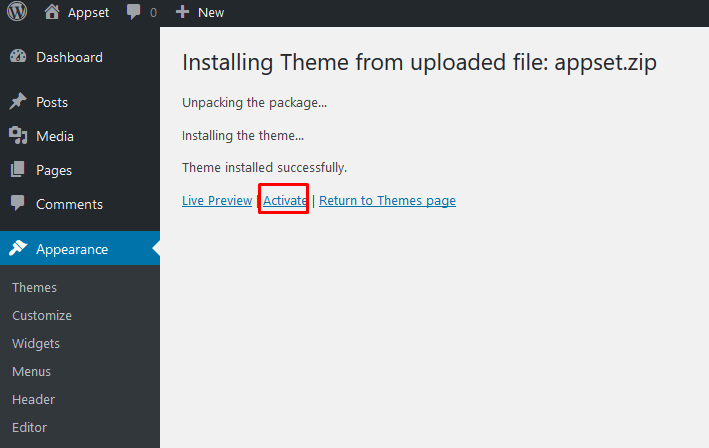
03 - Activate ImmiEx
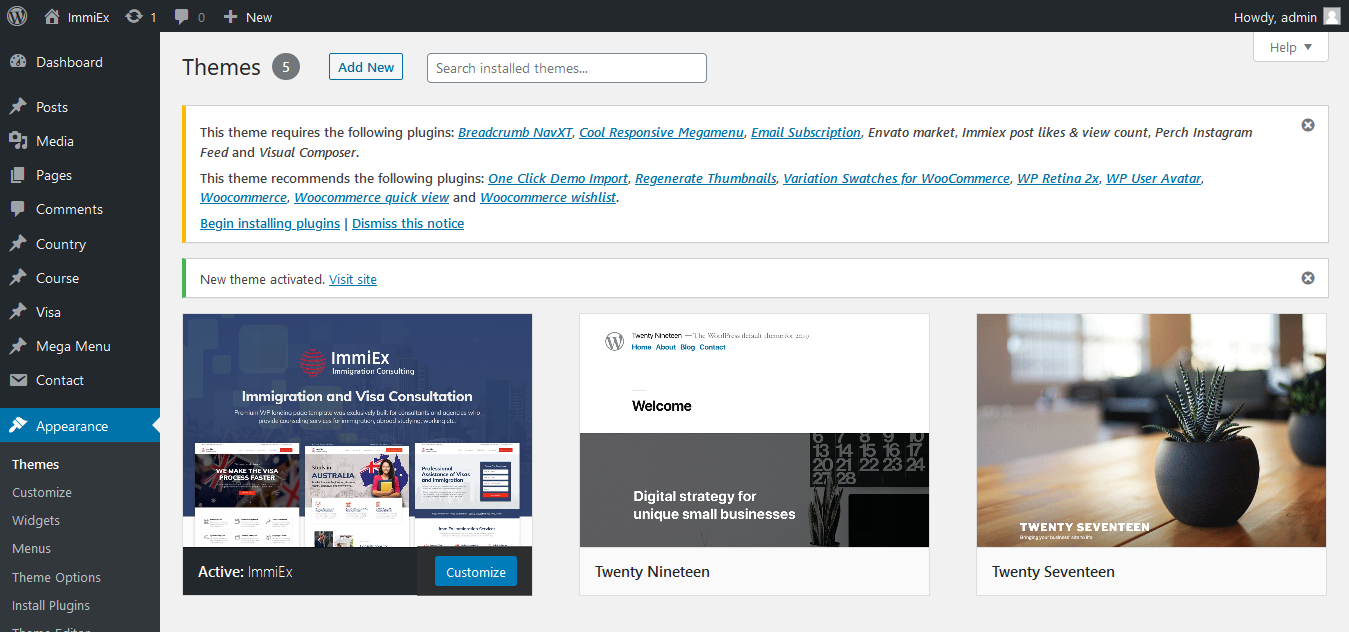
04 - Activated!
Install & Activate ImmiEx required plugins
Install & activate ImmiEx theme, functionality in your WP admin
Go to Appearance > Install plugins.
- Check all & install plugins
- Check all & activate plugins
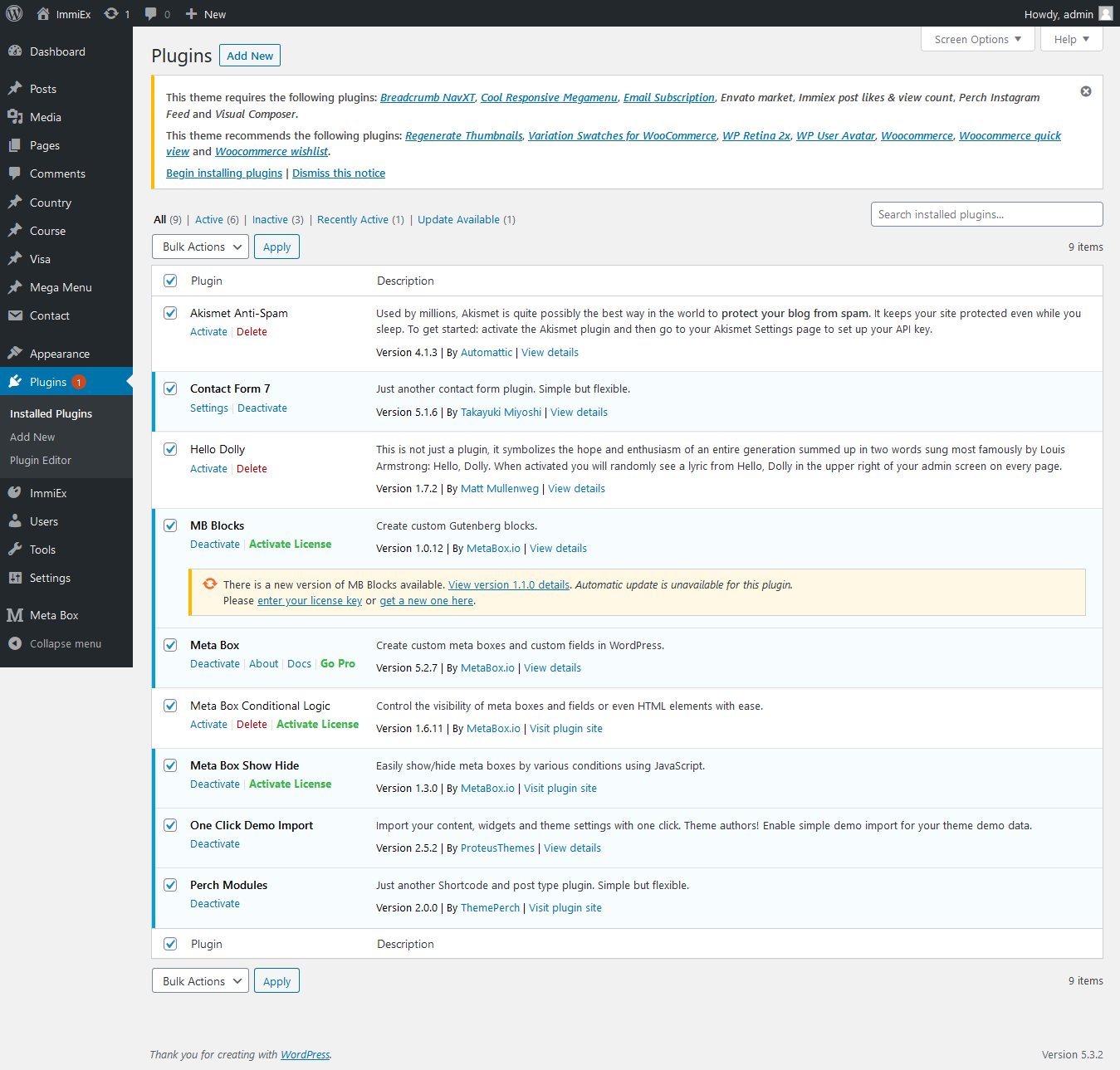
01 - Install plugins
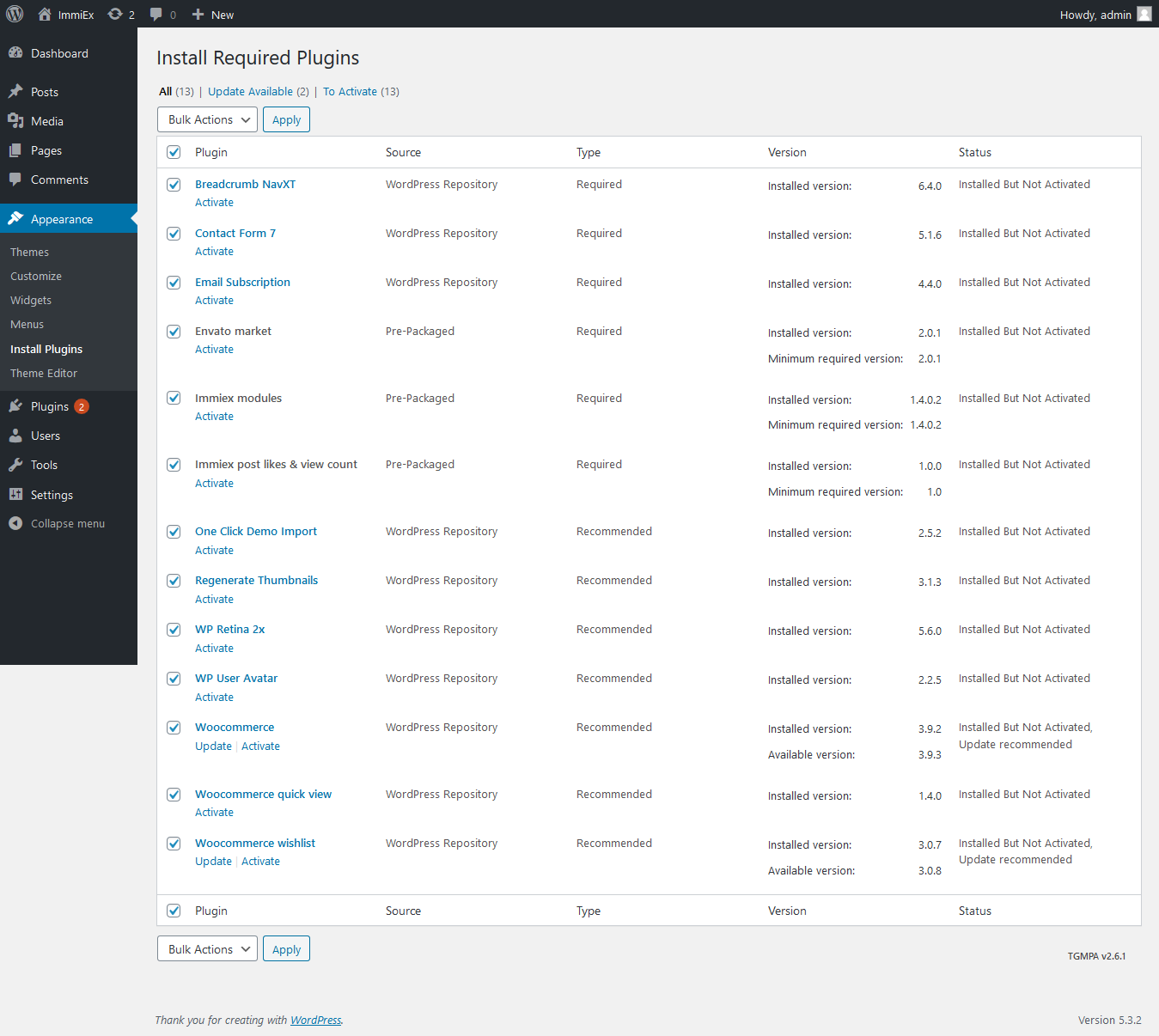
02 - Activate plugins
Import ImmiEx Demo data
Importing demo data is the easiest way to setup your theme. It will allow you to quickly edit everything instead of creating content from scratch.
When you import the data, the following things might happen:
- No existing data will be deleted or modified.
- Posts, pages, images, widgets & menus will get imported.
- Please click on the Import button only once and wait
- It can take a couple of minutes.
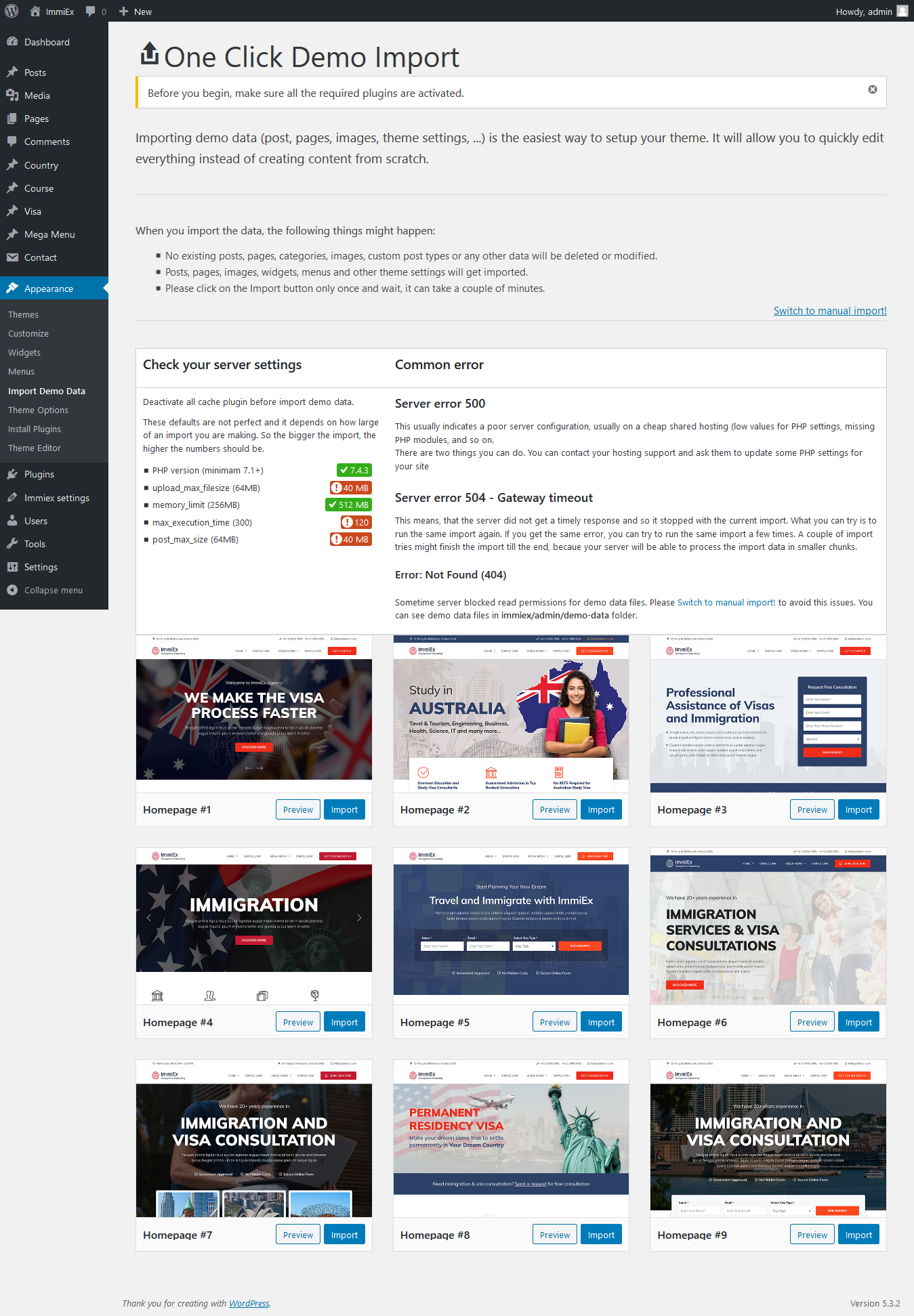
01 - Import Demo Data
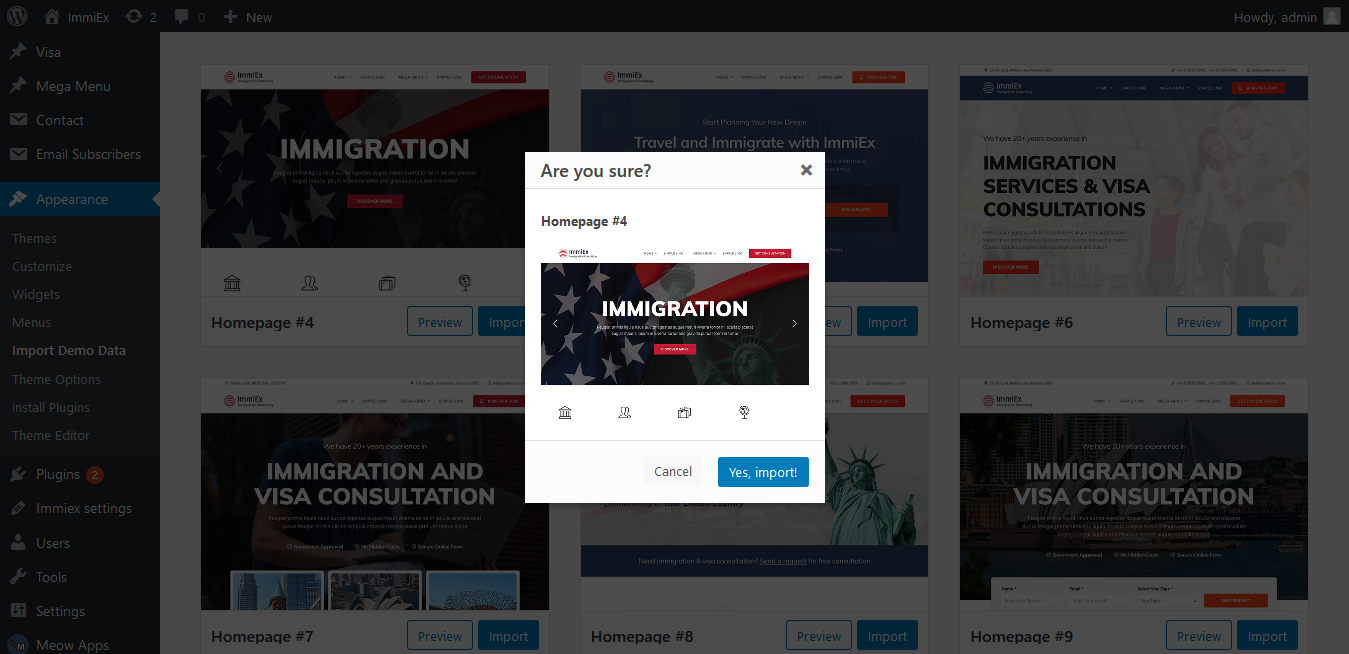
02 - Select demo & Import
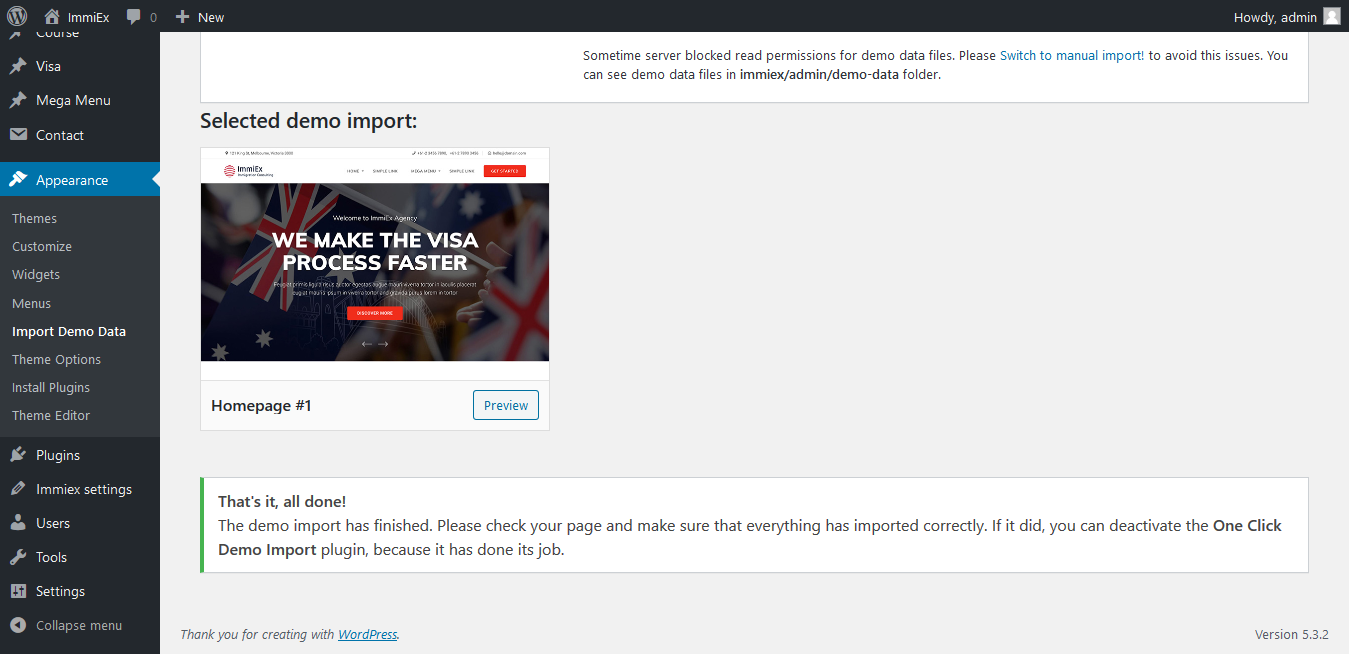
03 - Done!!
ImmiEx Landing Page Settings
Landing page Options
-
01 - Select Gutenberg block editor
The Gutenberg WordPress block editor is a new page builder.as more than a content field, that is being designed to integrate with WordPress core. Gutenberg will add content blocks and page builder-like functionality to every up-to-date WordPress website.
-
02 - Add to Reusable Blocks
You can add Reusable Blocks here or create new landing page template
-
03 - Field options
field options, you can control over the default values in your fields && you can enter your content, sus as Name, Title , Subtitle, Image.Creat your template
-
04 - Typography options
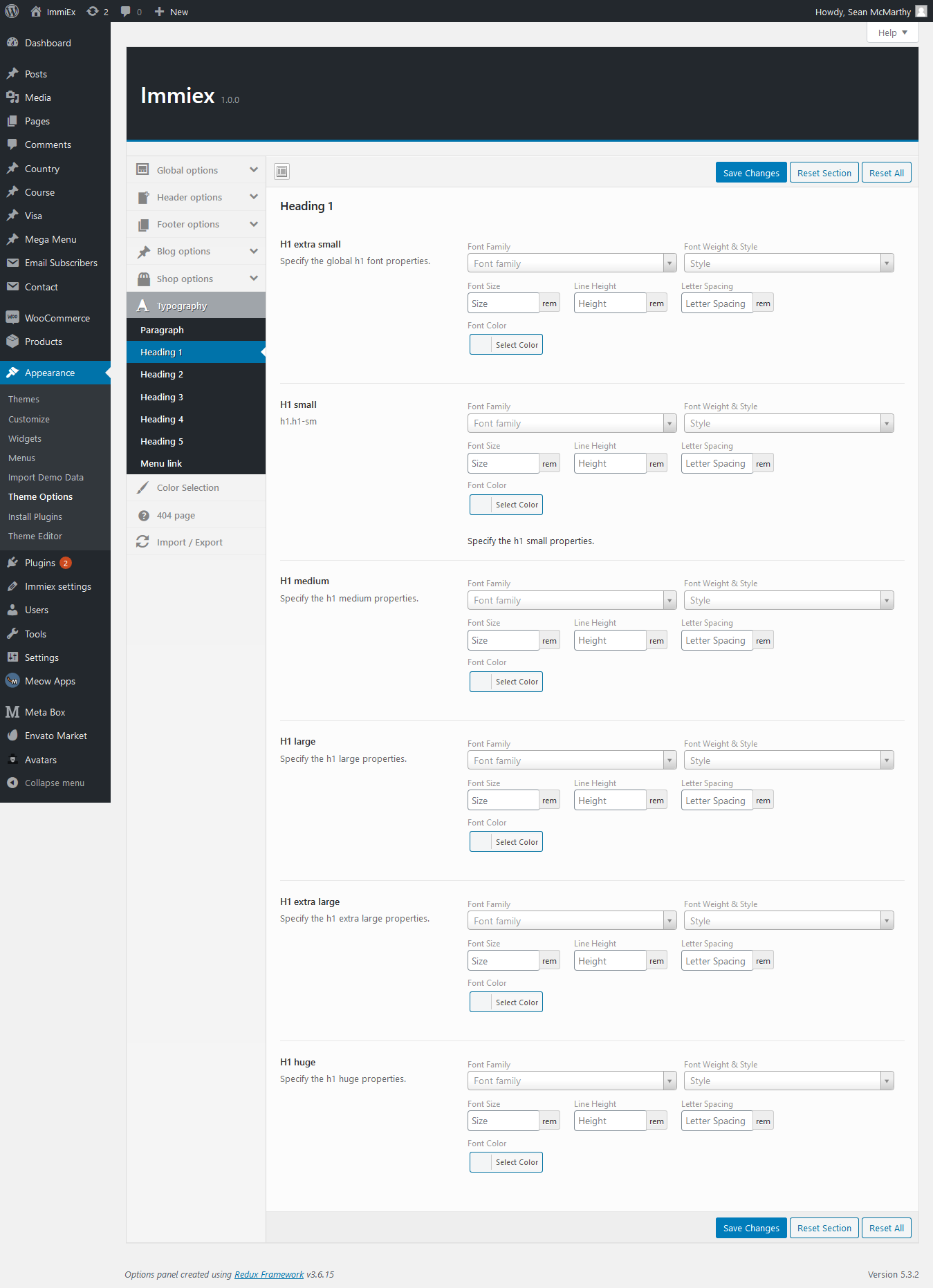
Typography involves tag ,tag-size, extra class & id , background-color align color, font style. You can fully customize any element, you prefer.
-
05 - Design options
Design involves ID & Extra class, Enable background image, and others Class options available
-
06 - Update Blockse
Template code here with the generated code and Update blockse
-
07 - Select Landing page Template
Select Navbar style, Add navbar buttons / Social Icons
-
08 - Select nav menu
Defining a Menu. You must define a menu before you can add items to it
-
09 - Logo settings
Click Select Logo to open the Media Library. Select an image from it or upload the new ...
-
10 - Navbar settings
Select Navbar style, Add navbar buttons / Social Icons / Navbar Search placeholder text.
-
11 - ImmiEx settings
You can add any Social button and also Icon Title URL
-
12 - Footer settings
Select Footer background style. Footer option can be changed from Theme options
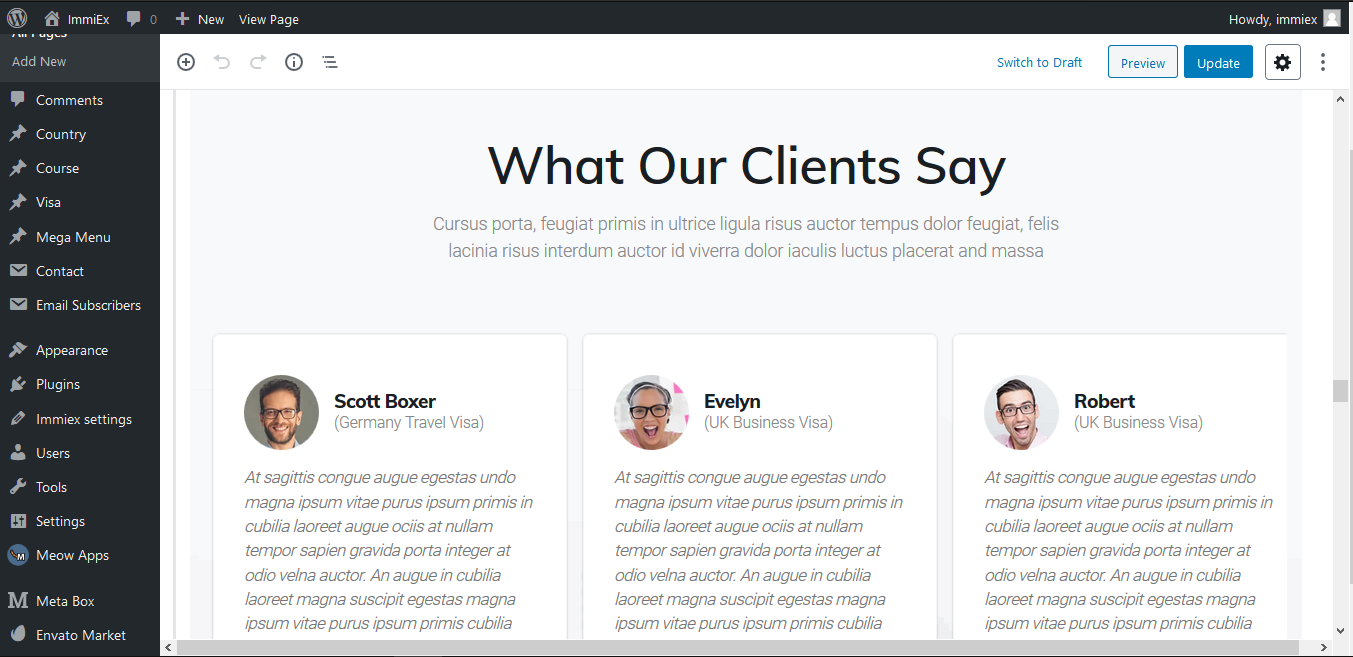
01 - Gutenberg Editor
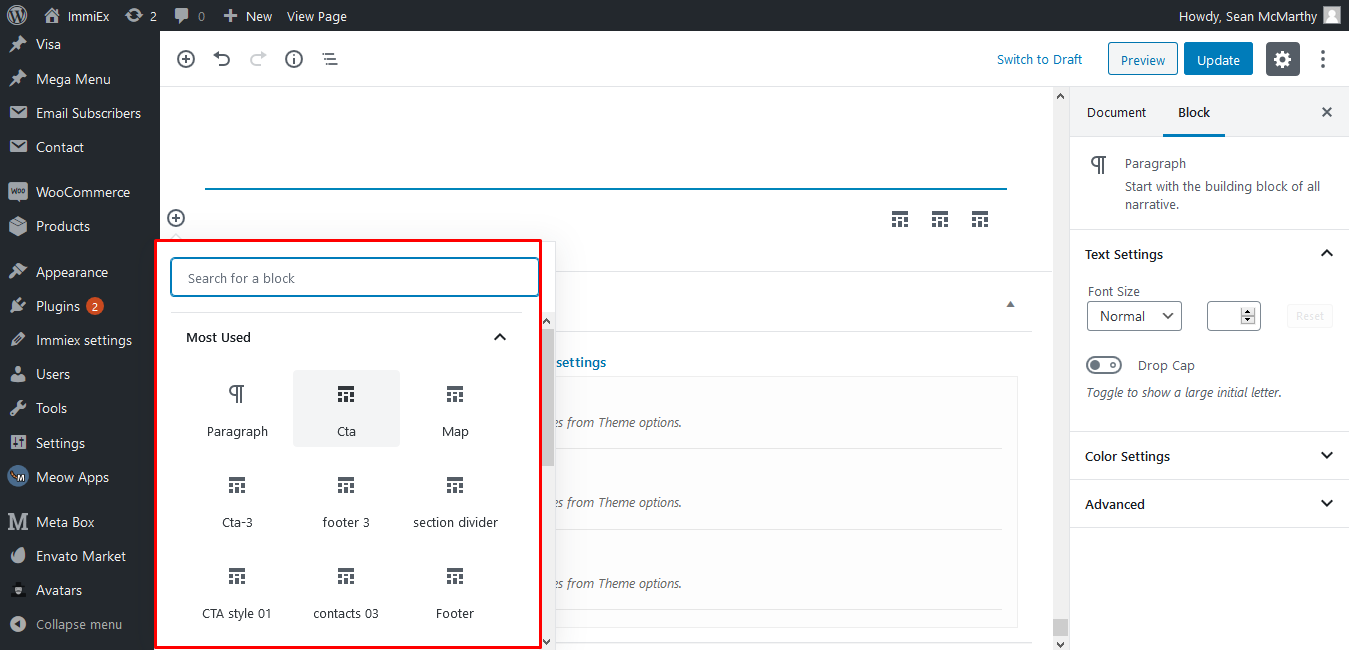
02 - Add to Reusable Blocks
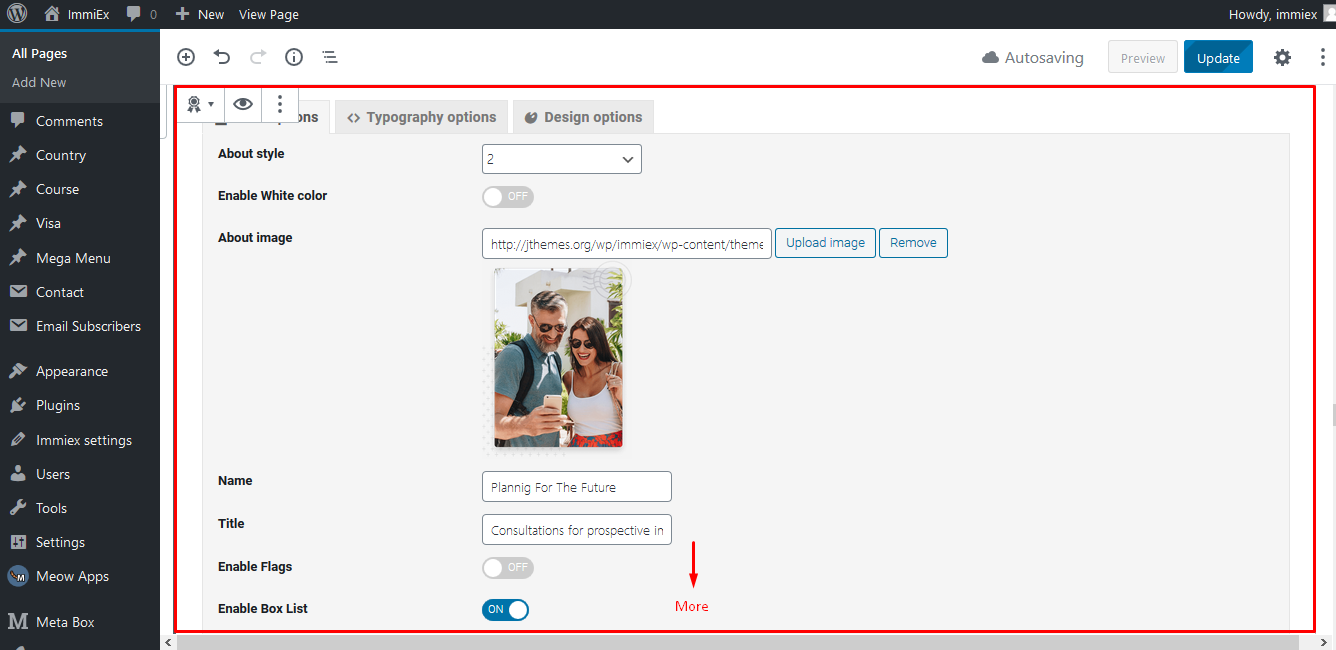
03 - Field options
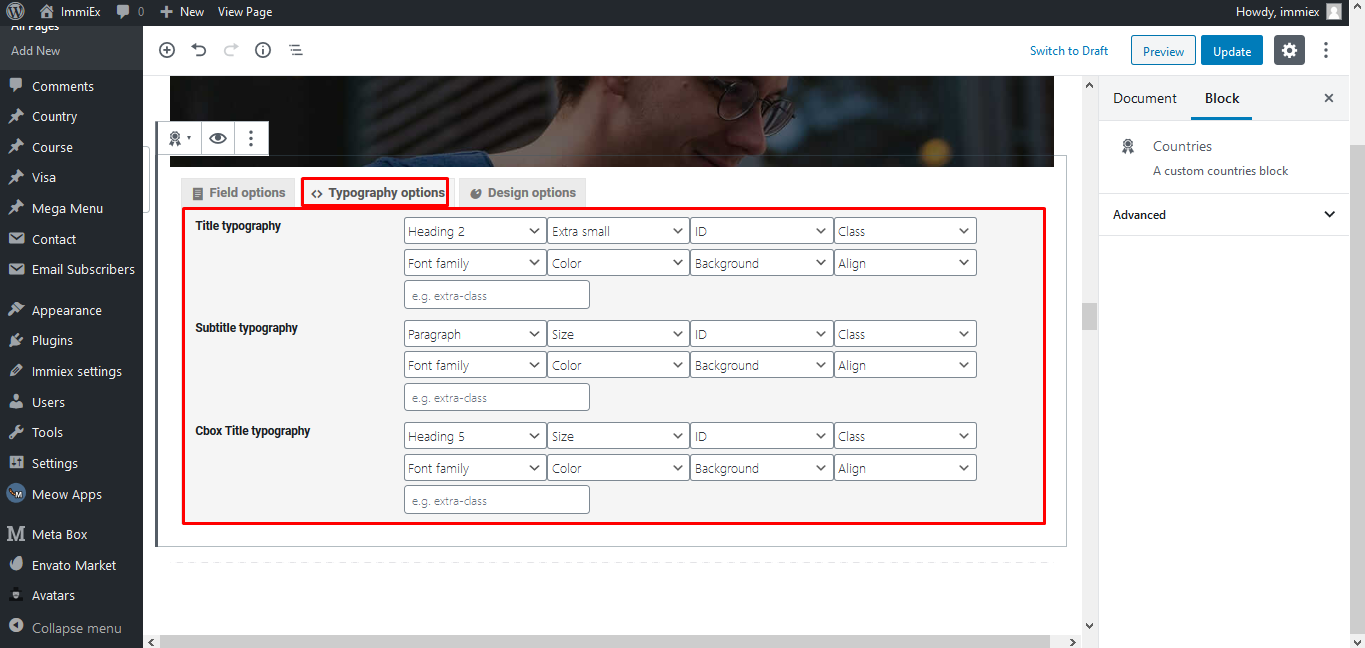
04 - Typography options
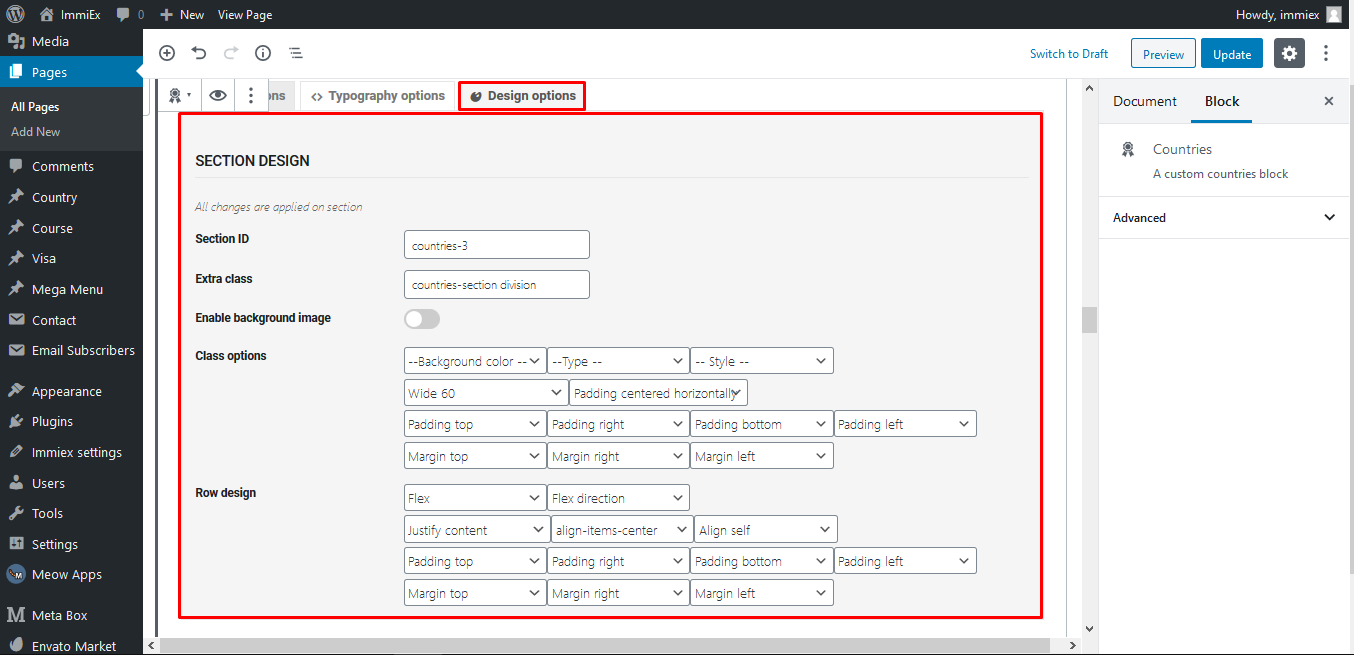
05 - Design options
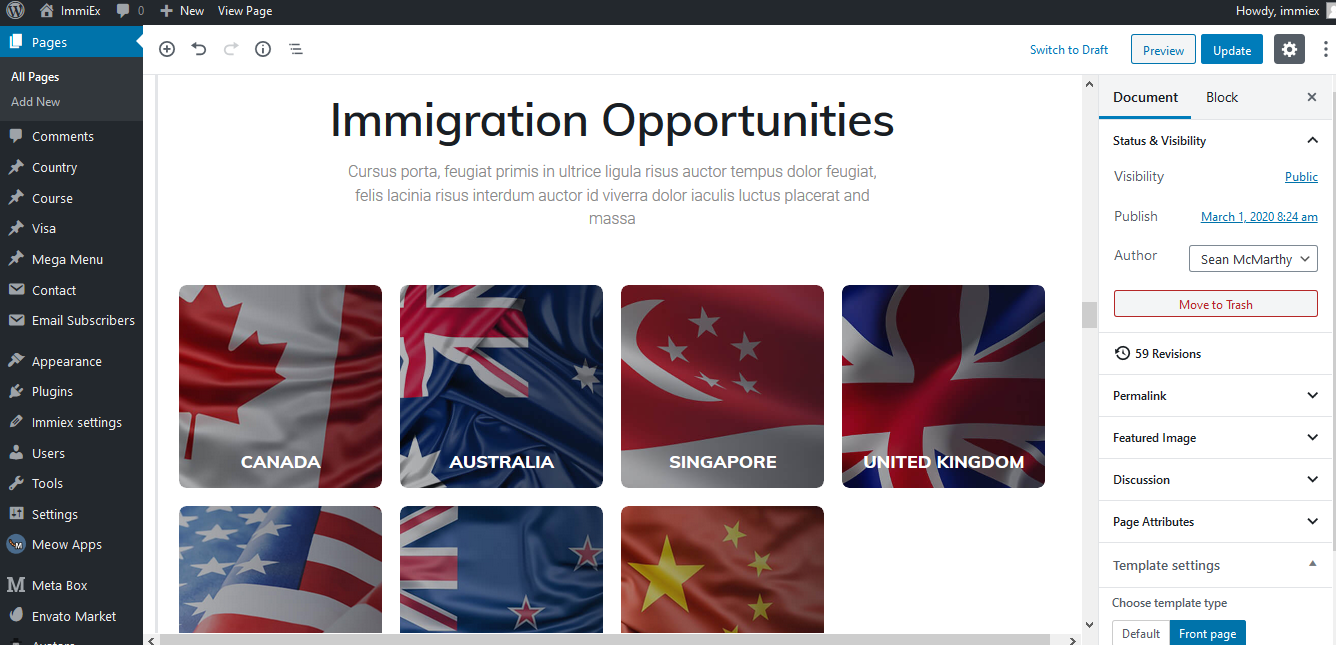
06 - Update Blockse
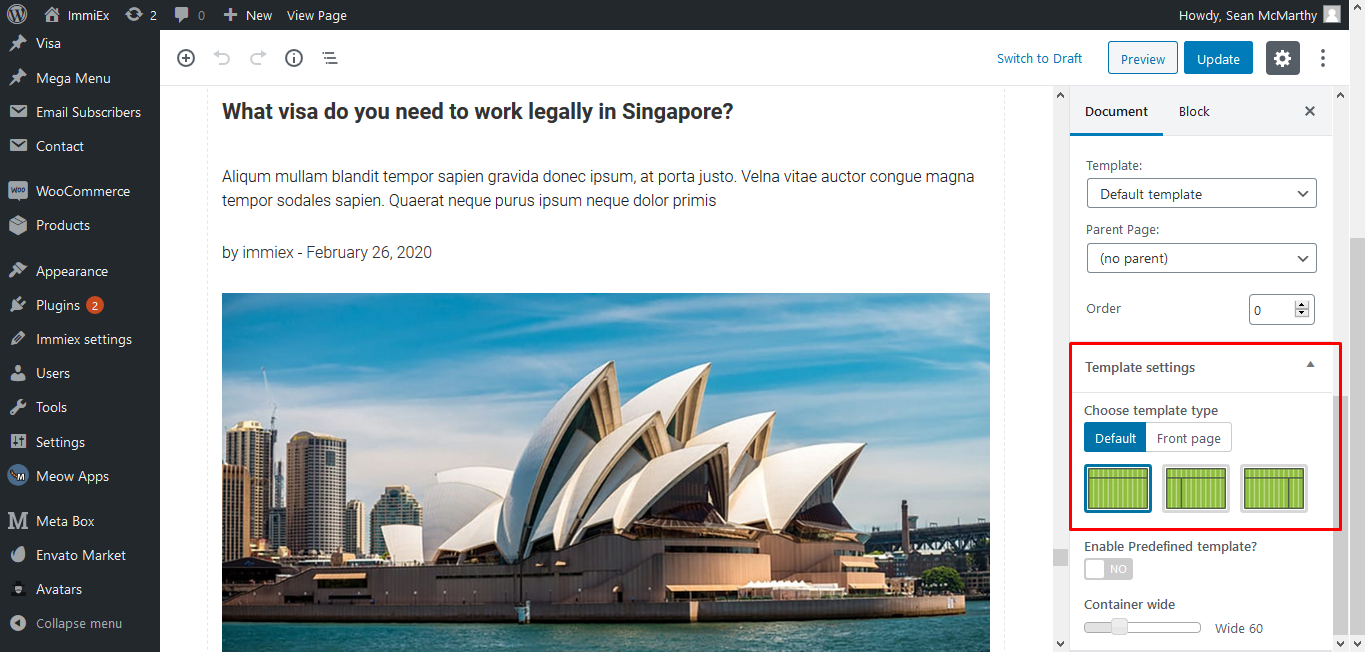
07 - Select template
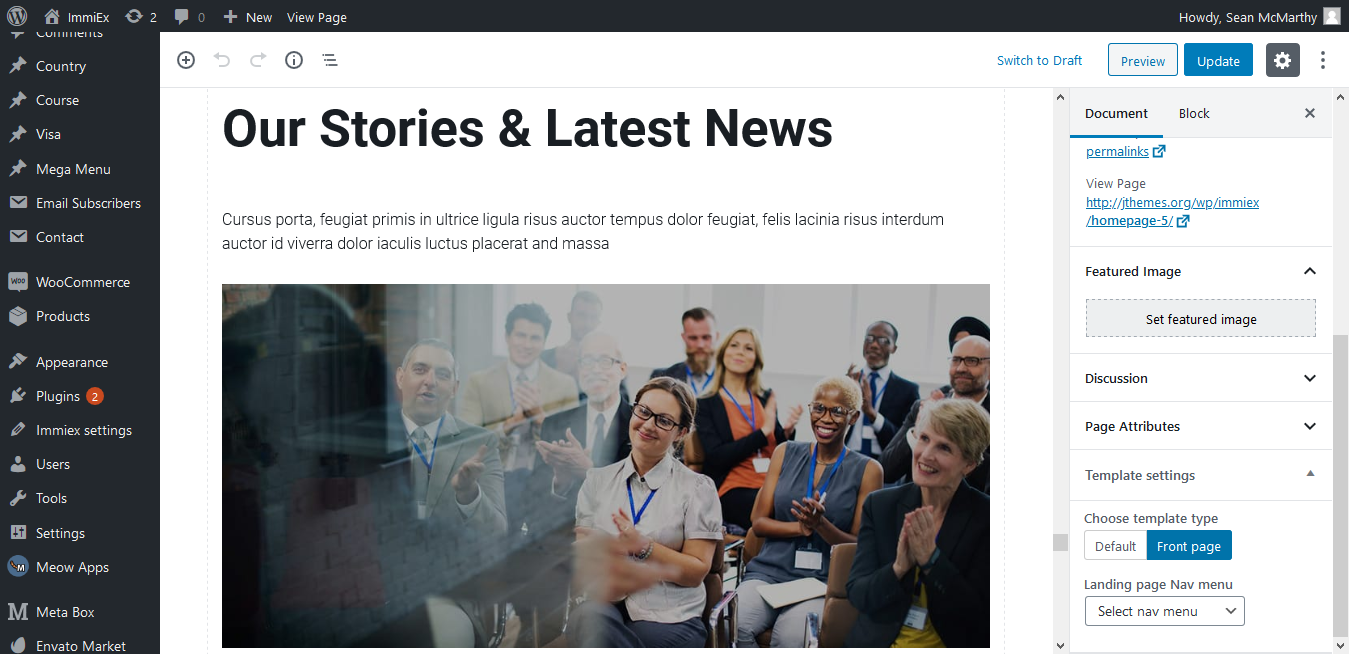
08 - Select nav menu
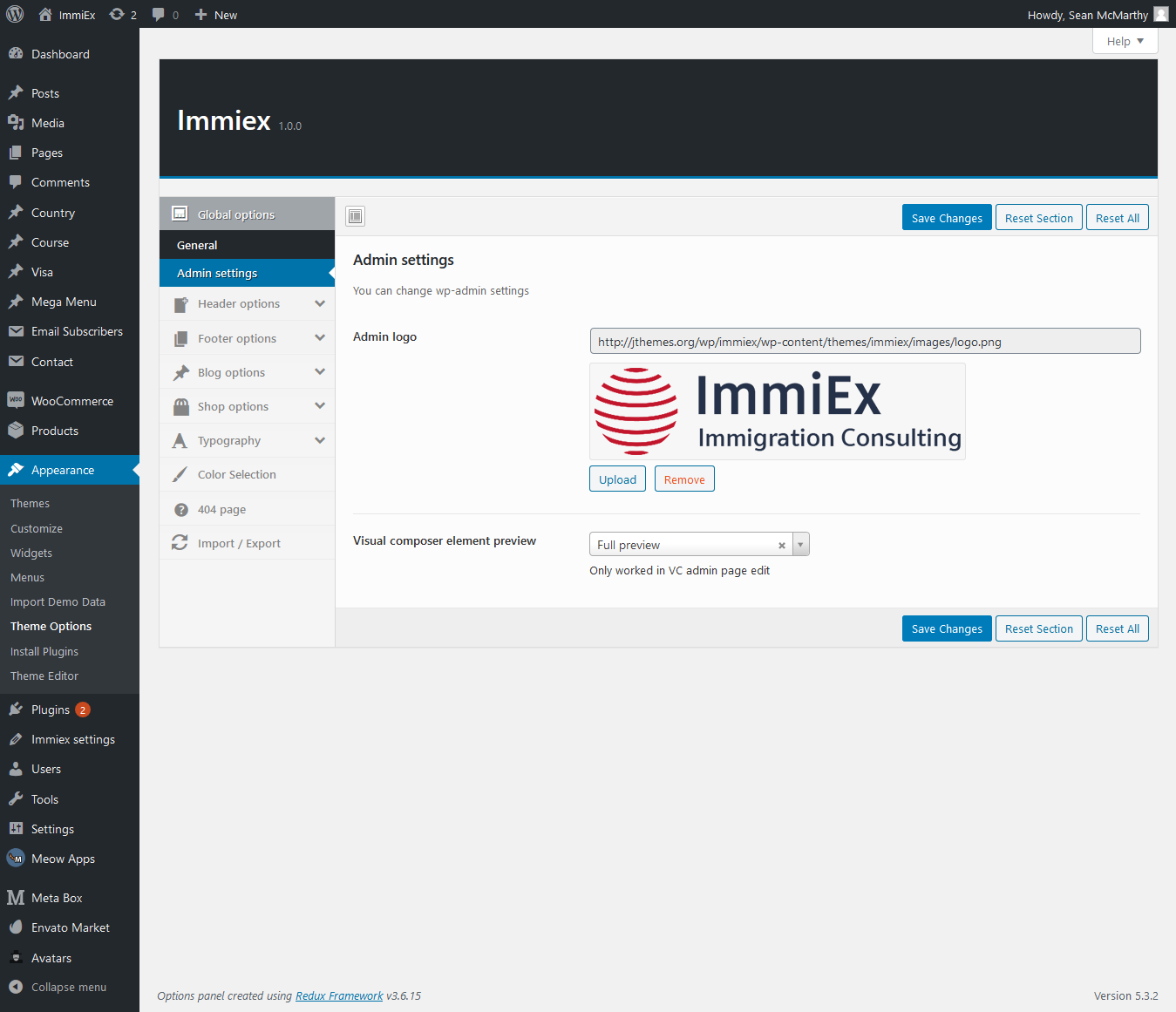
09 - Logo settings
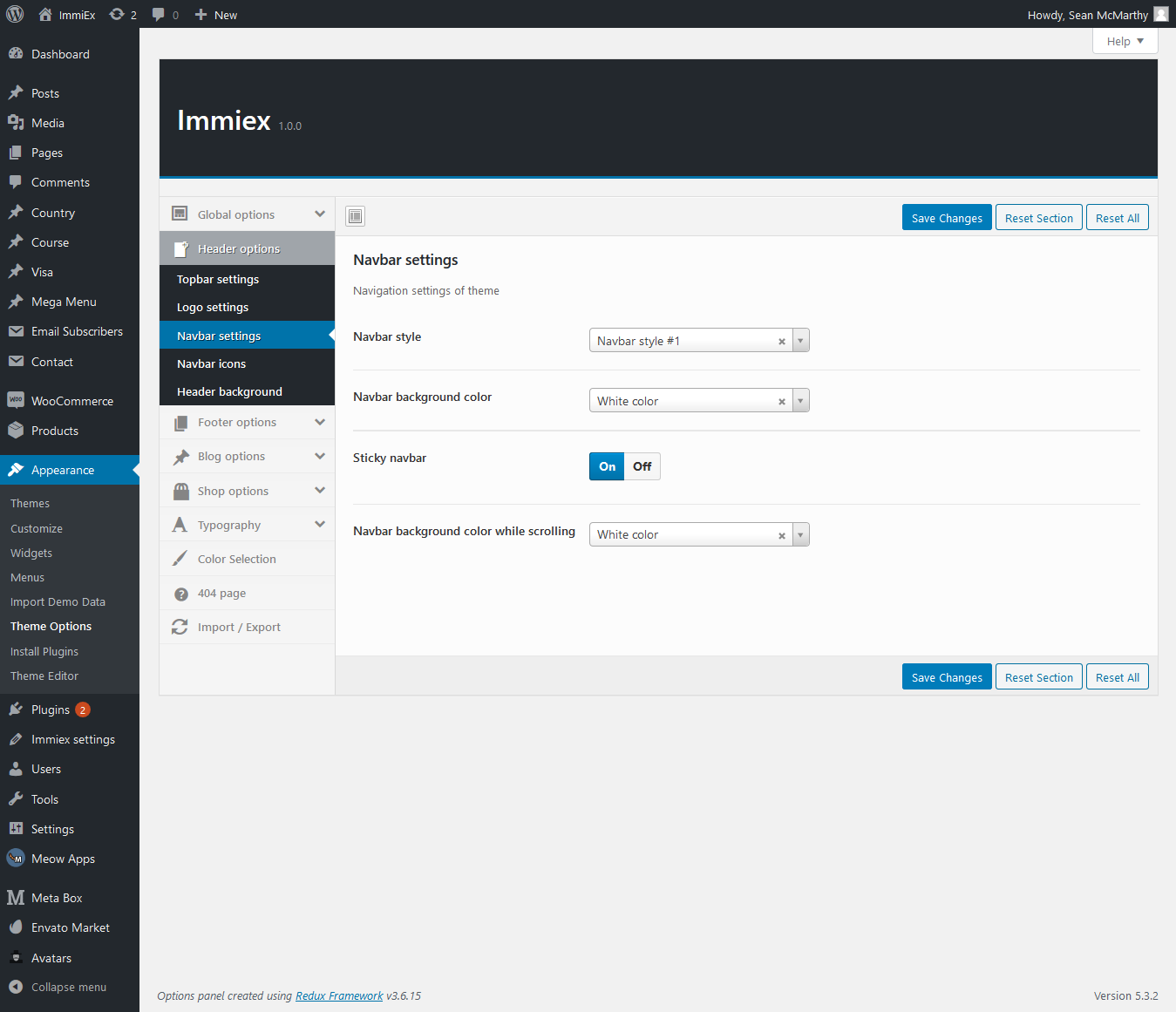
10 - Navbar settings

11 - ImmiEx settings

12 - Footer settings
Theme Options
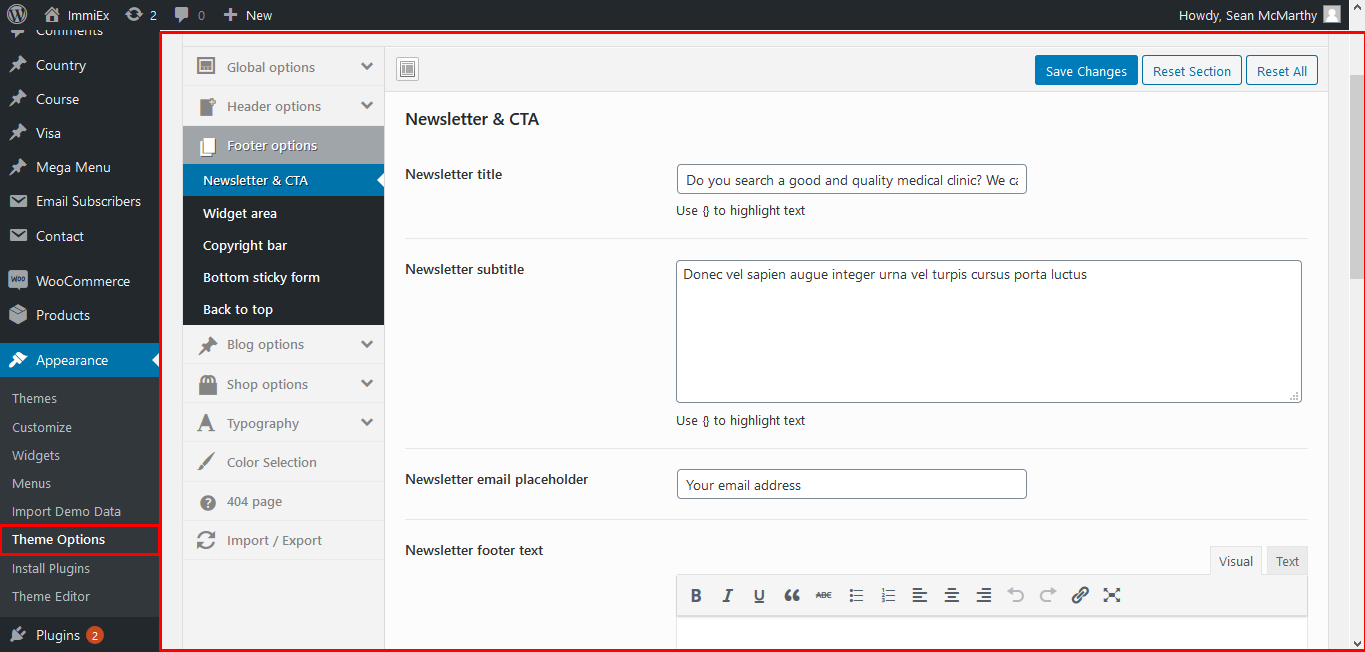
01 - General options
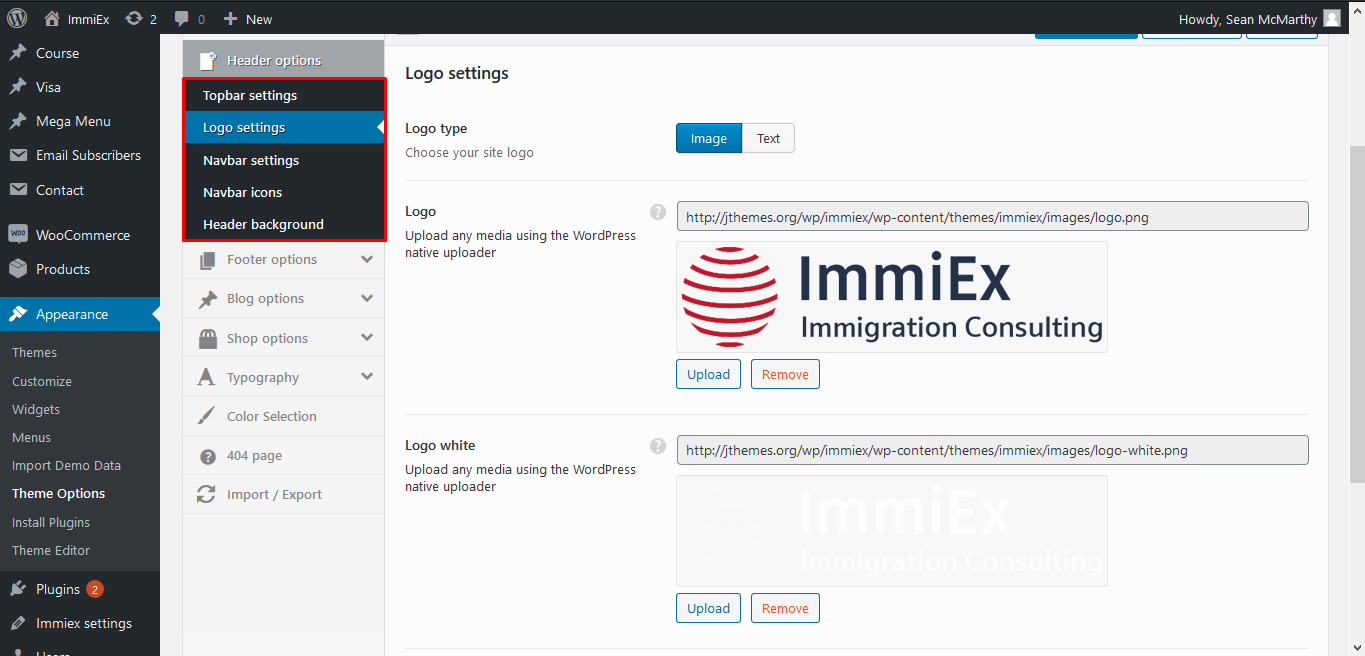
02 - Header options
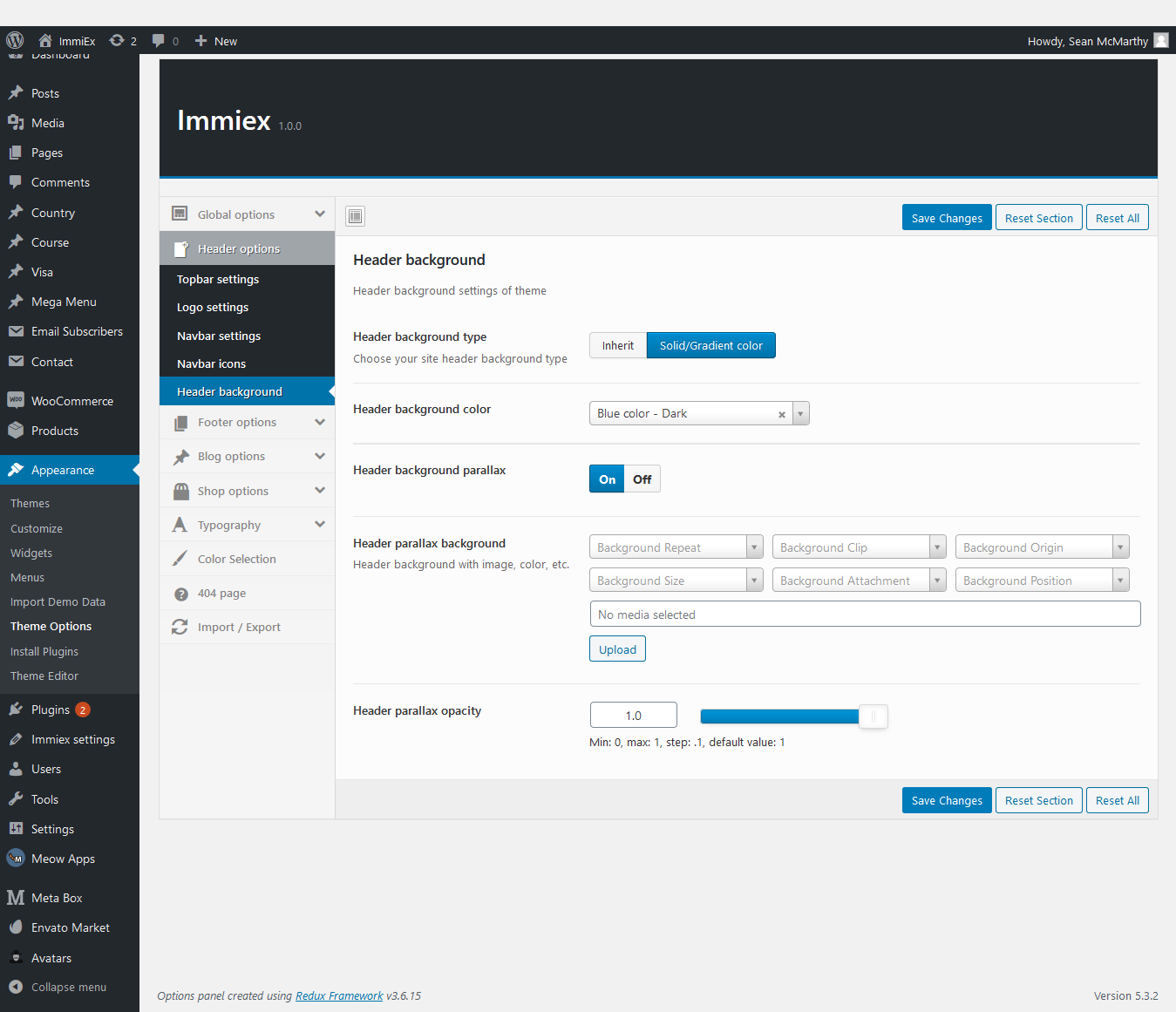
03 - Background options
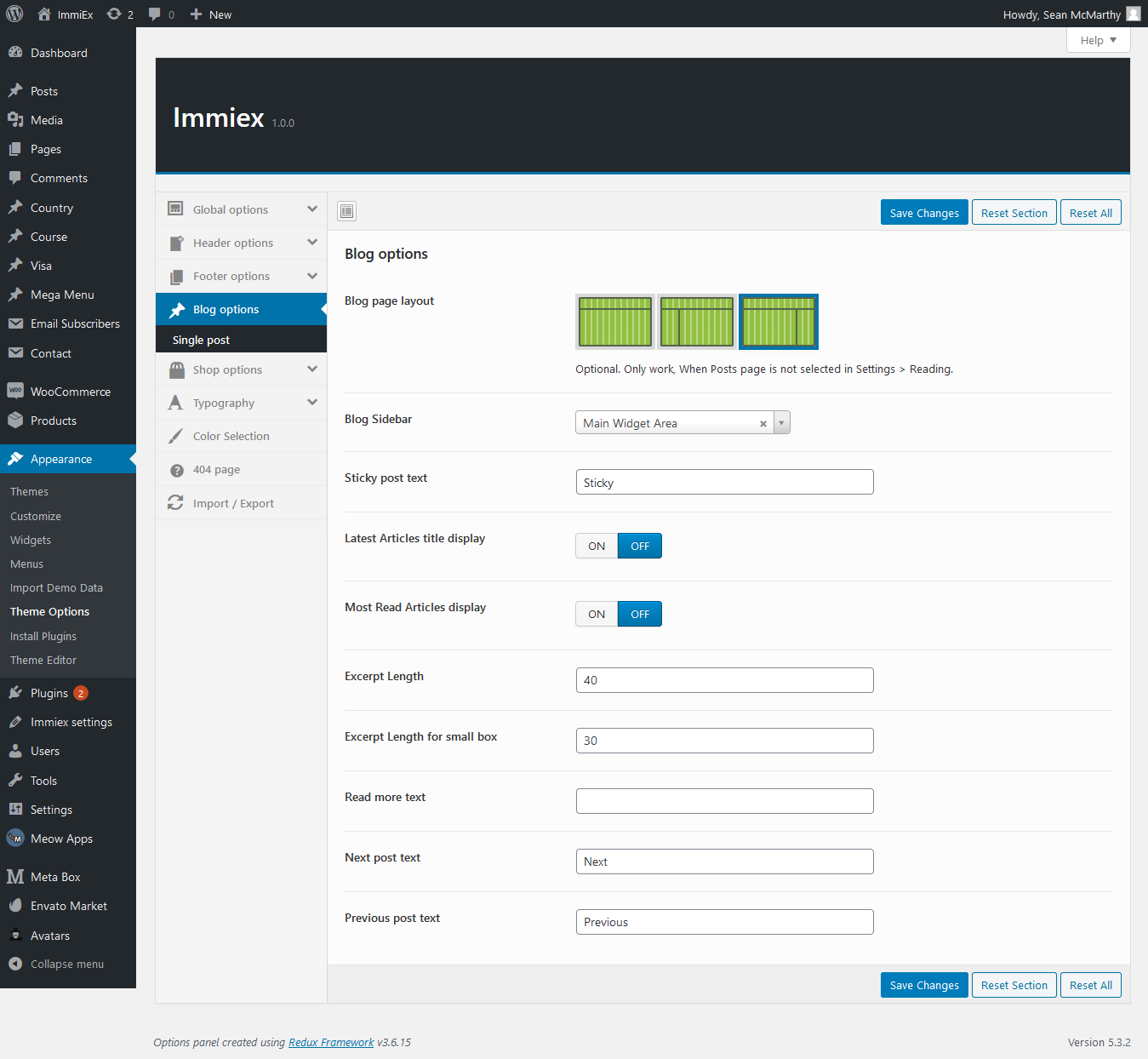
04 - Sidebar options
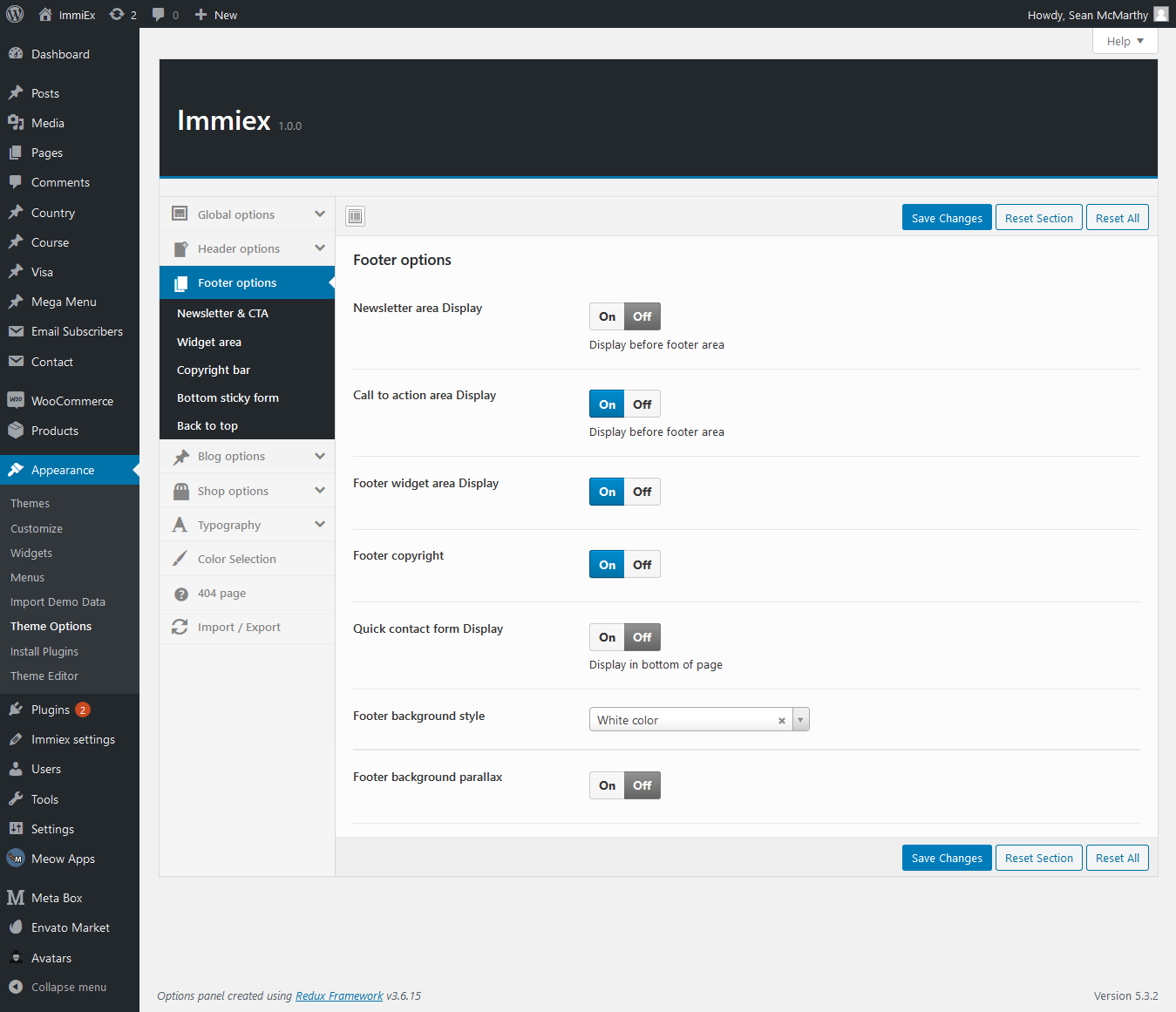
05 - Footer options
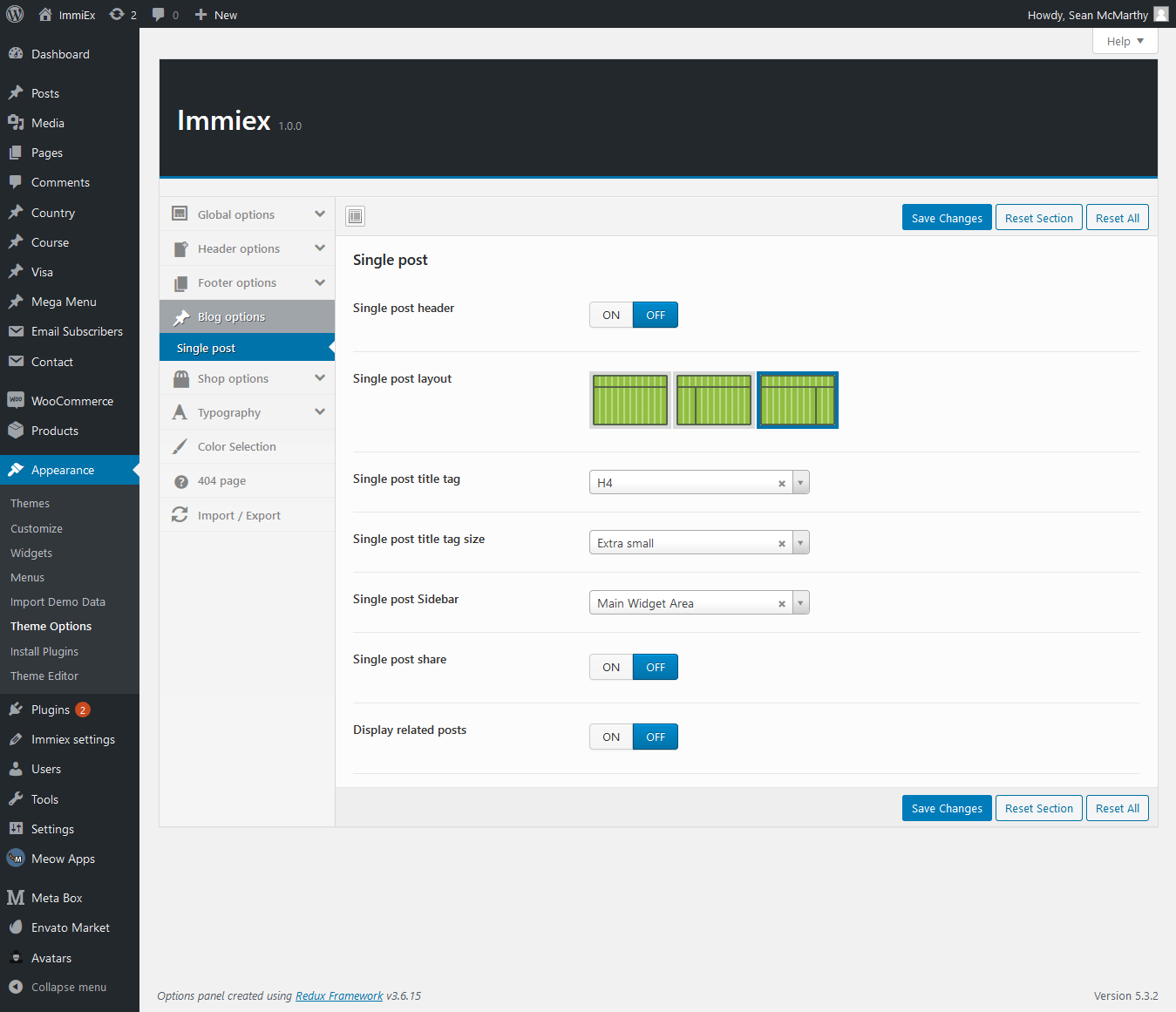
06 - Blog & single post options
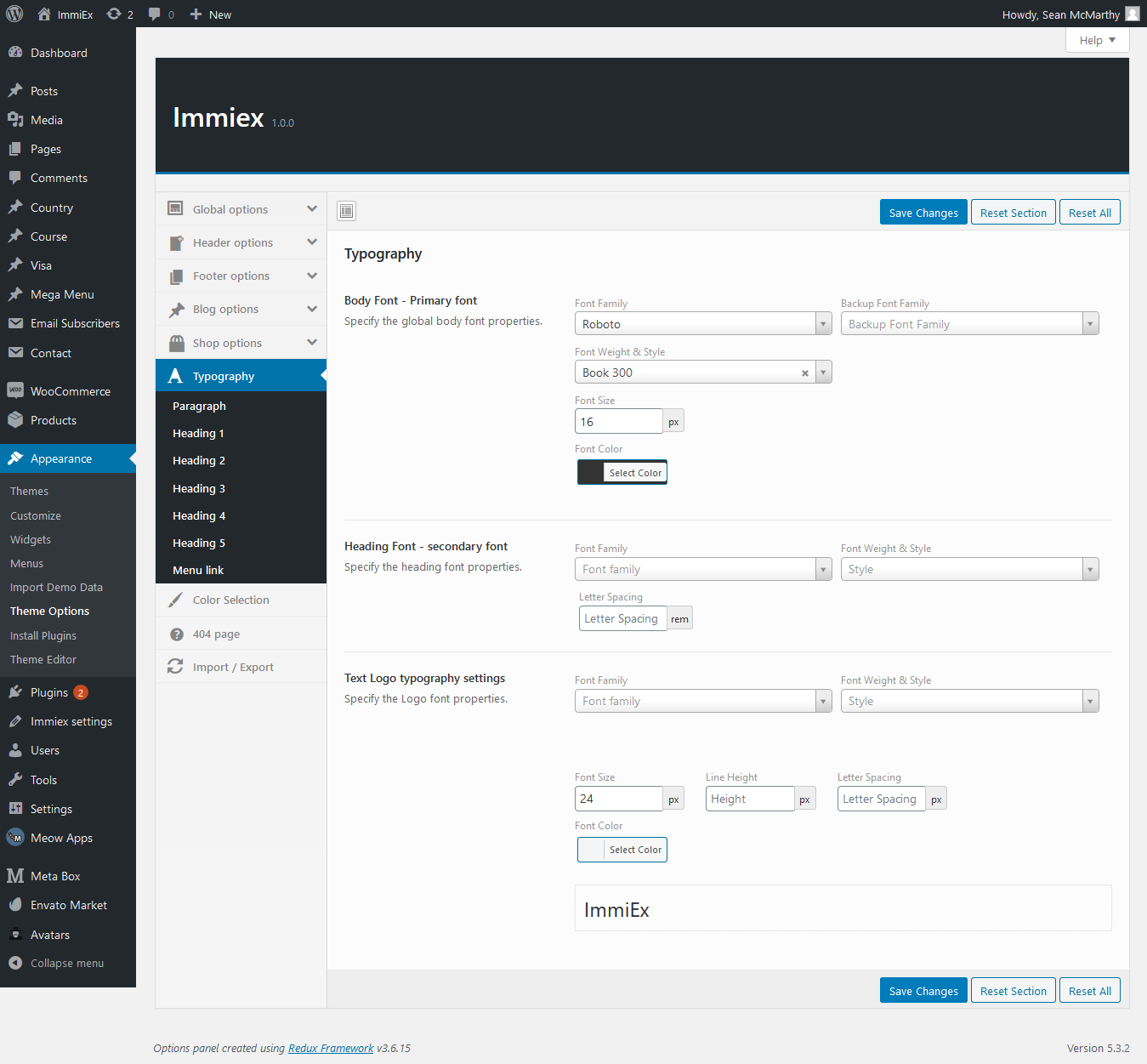
07 - Typography options
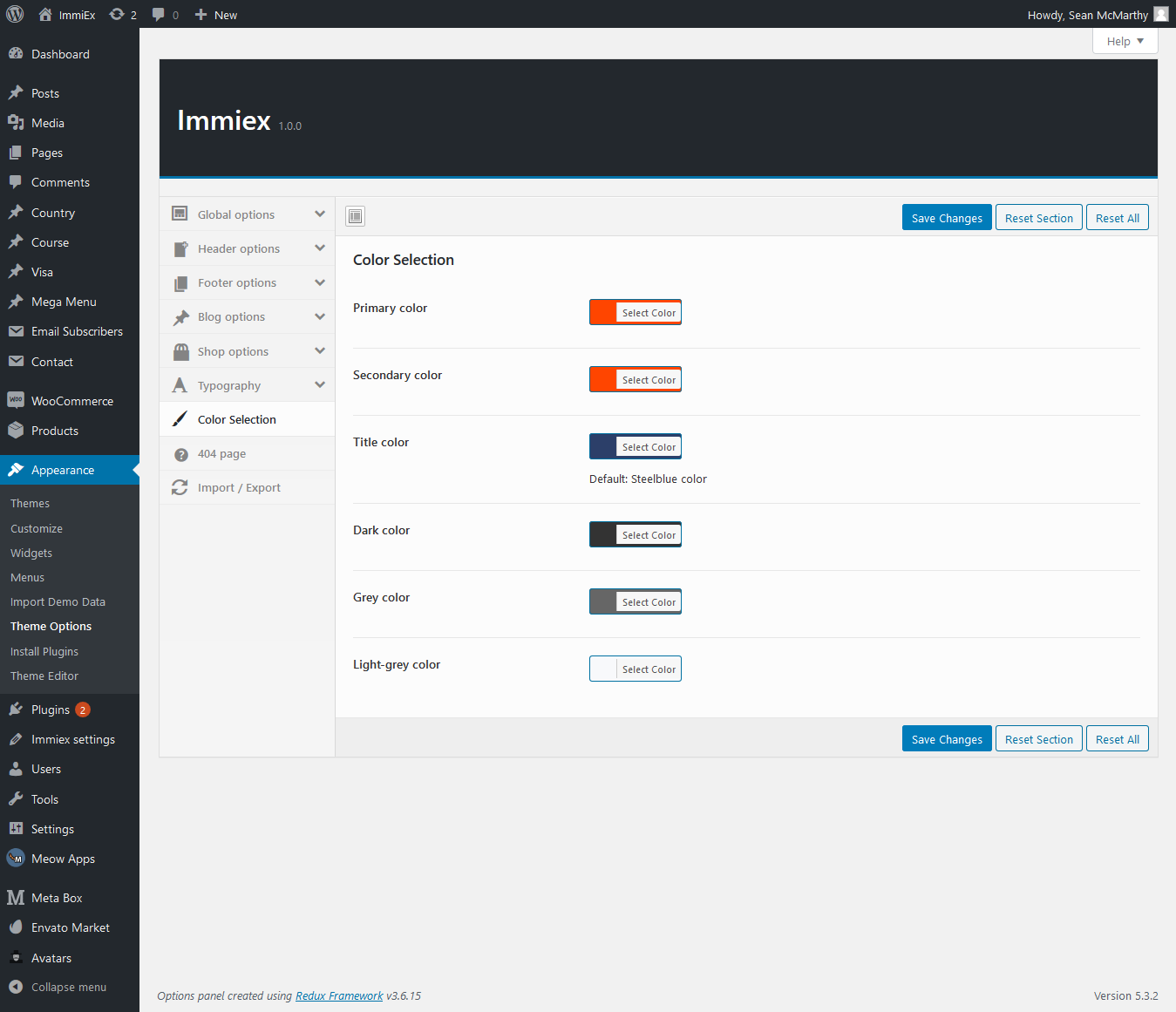
08 - Styling options