LandPick is a pixel perfect Premium Multi-Purpose Landing Pages
A great collection of flexible,innovative and incredibly attractive lightweight and fast-loading, readily responsive & ultra modern creative landing page templates to promote business, startup or corporate web sites and anybody can show the best works in a simple way
Landpick Installation & Activation Process
Install & activate Landpick theme, functionality in your WP admin
Adding Landpick Themes using wp-admin Panels
Upload a Landpick theme you have already downloaded:
- Extract Main-files.zip
- Find landpick.zip file(Main theme file)
- Upload landpick.zip
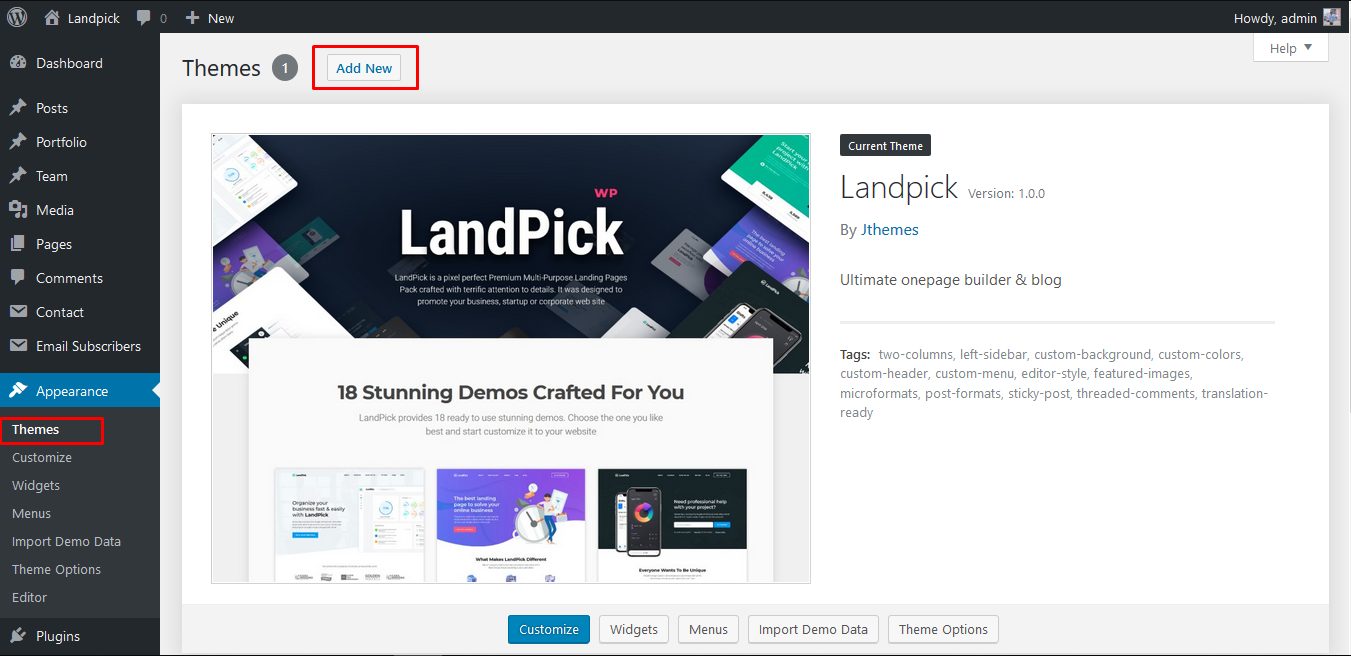
01 - Appearance > Themes
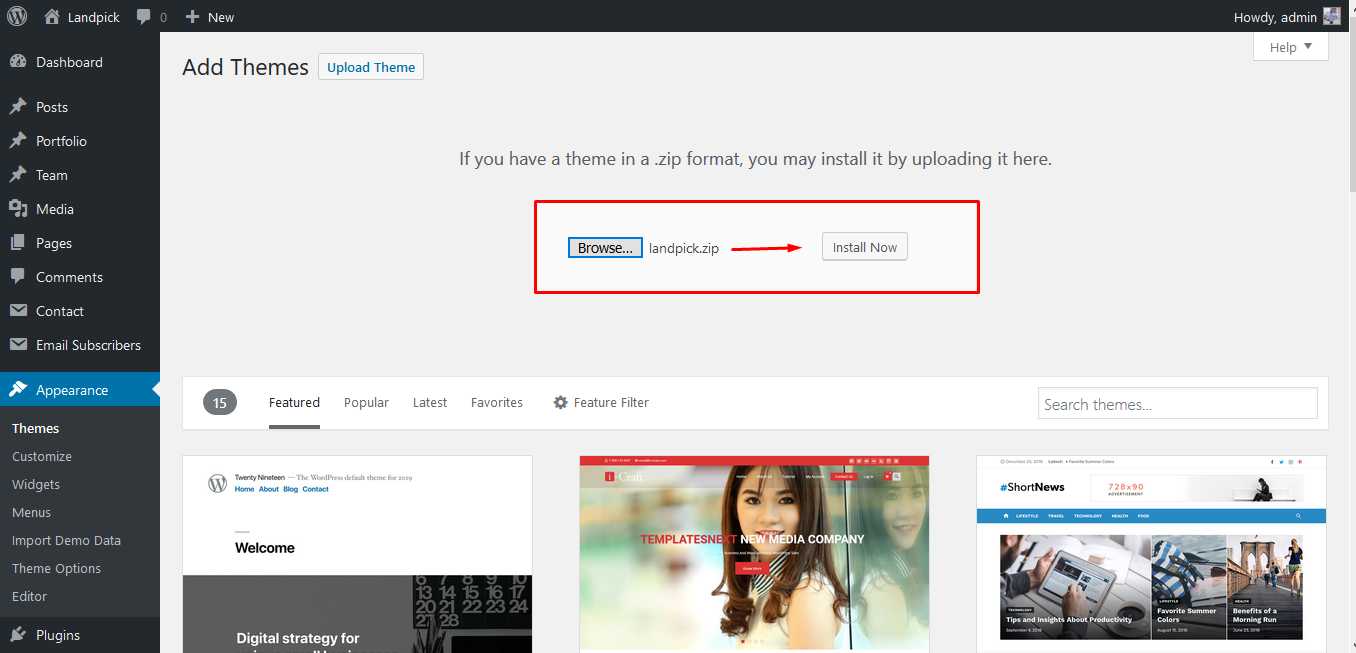
02 - Upload Landpick.zip
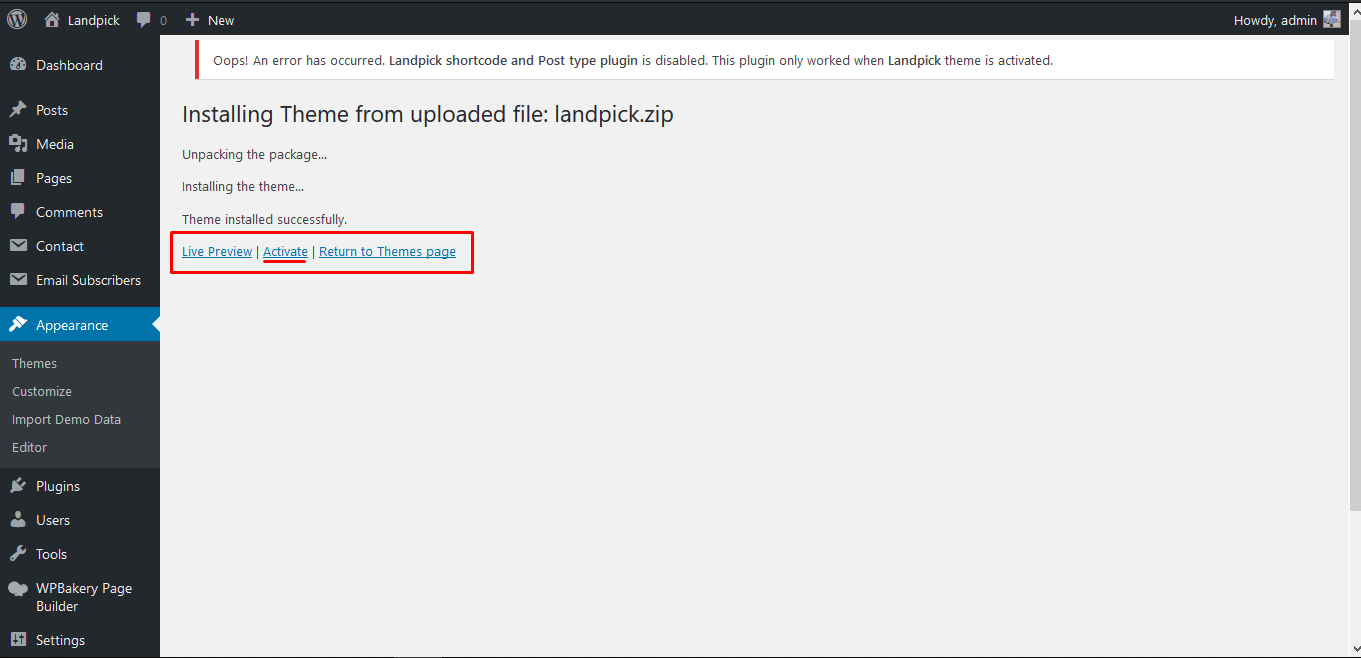
03 - Activate Landpick
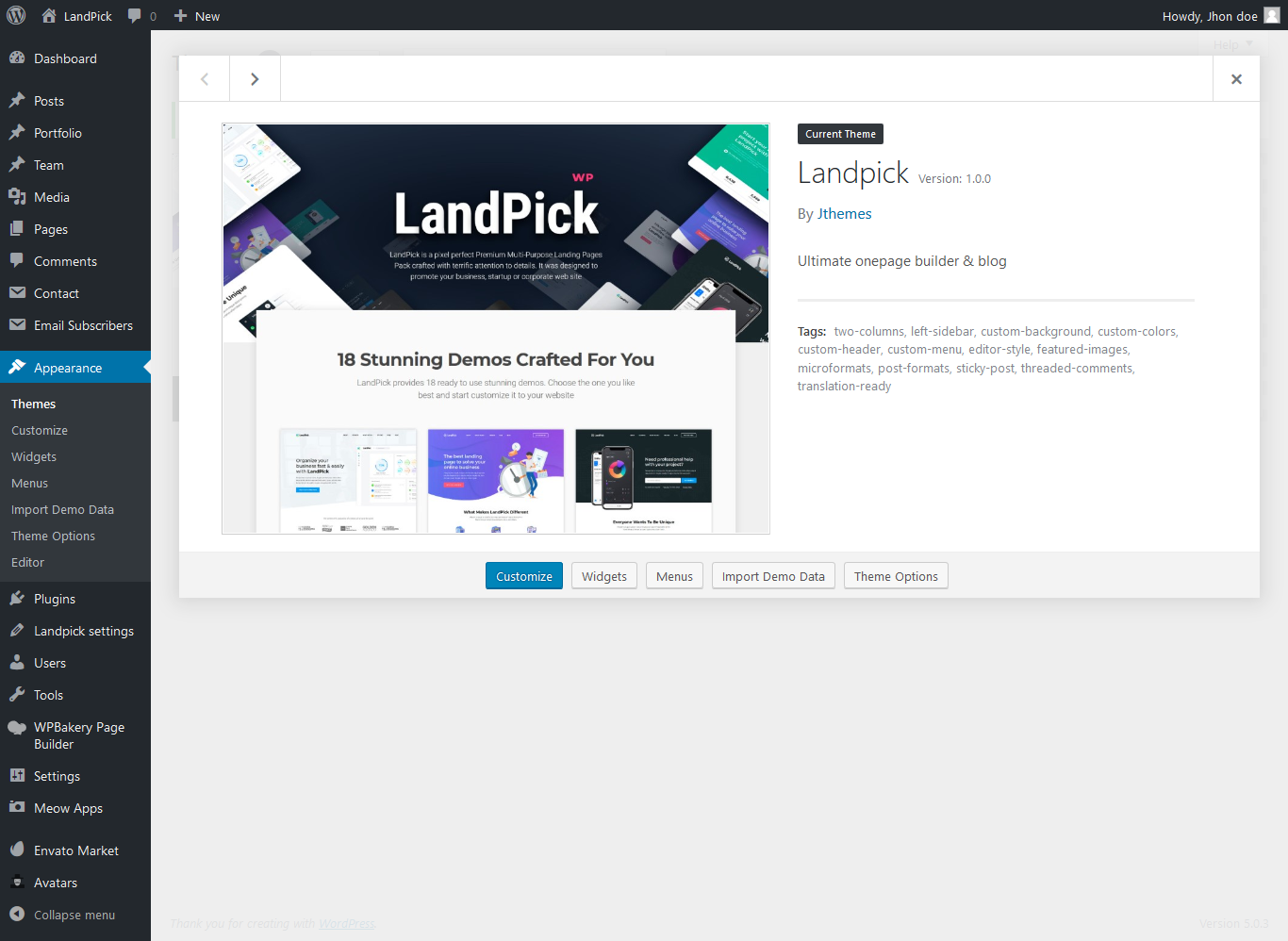
04 - Activated!
Install & Activate Landpick required plugins
Install & activate Landpick theme, functionality in your WP admin
Go to Appearance > Install plugins.
- Check all & install plugins
- Check all & activate plugins
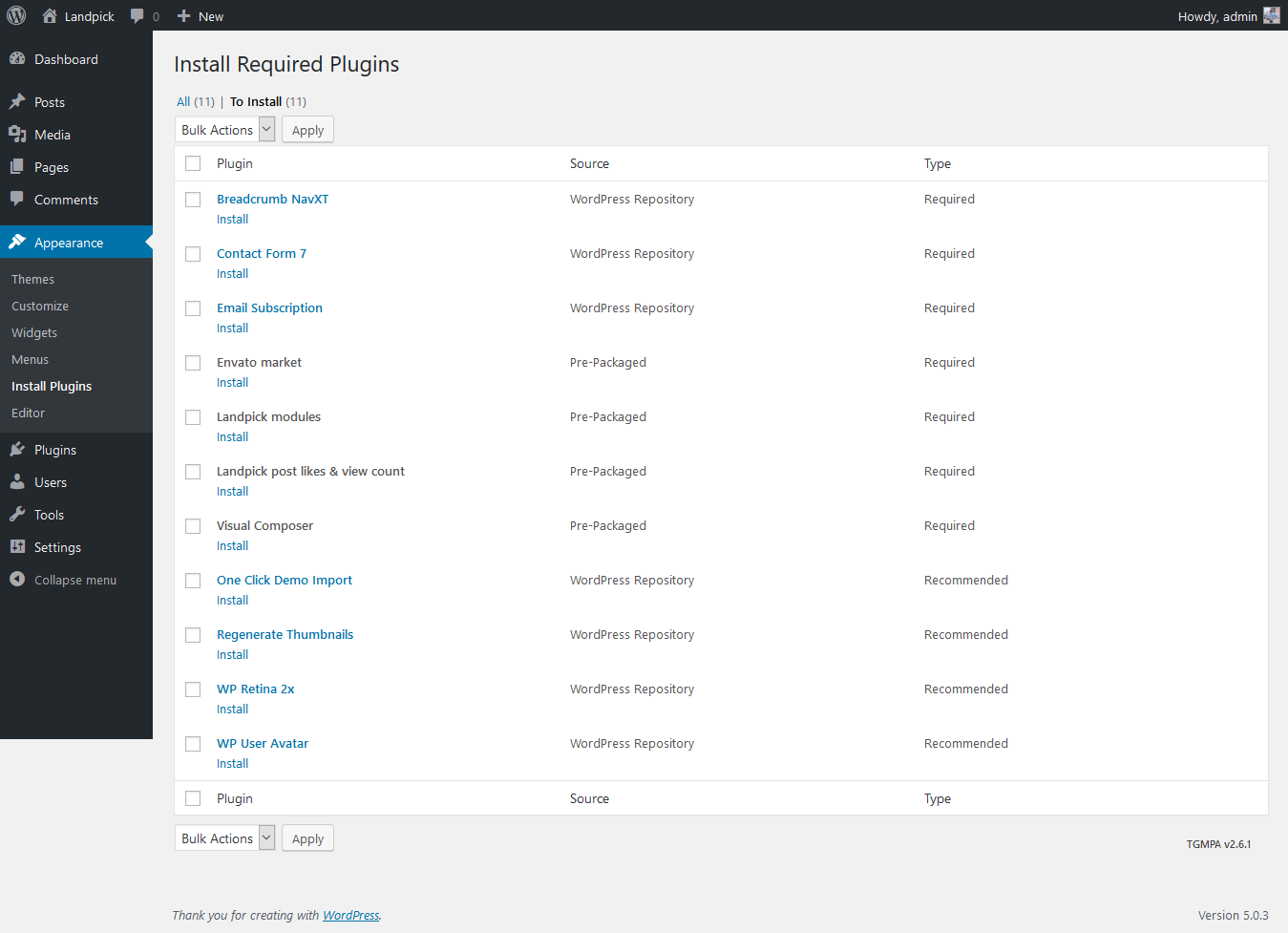
01 - Install plugins
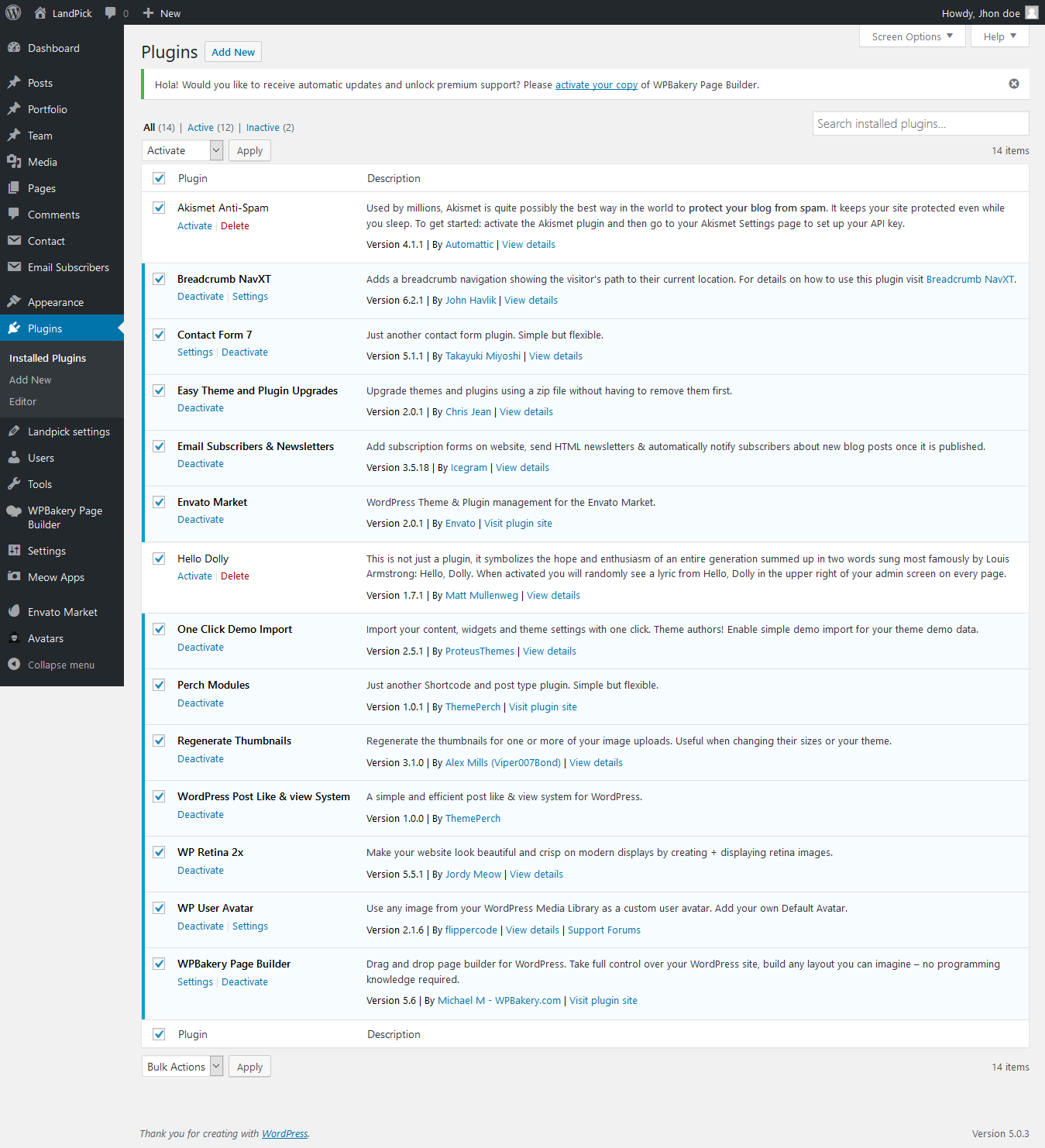
02 - Activate plugins
Import Landpick Demo data
Importing demo data is the easiest way to setup your theme. It will allow you to quickly edit everything instead of creating content from scratch.
When you import the data, the following things might happen:
- No existing data will be deleted or modified.
- Posts, pages, images, widgets & menus will get imported.
- Please click on the Import button only once and wait
- It can take a couple of minutes.
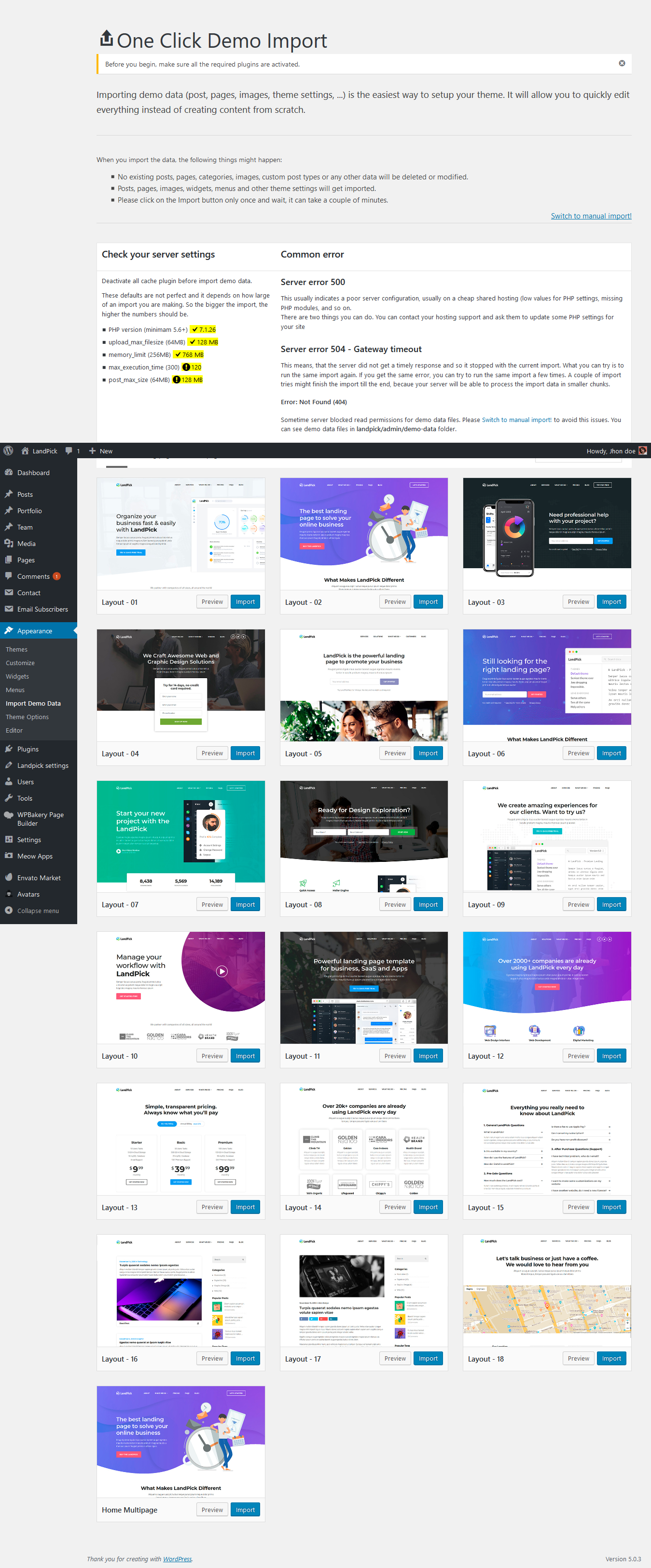
01 - Import Demo Data
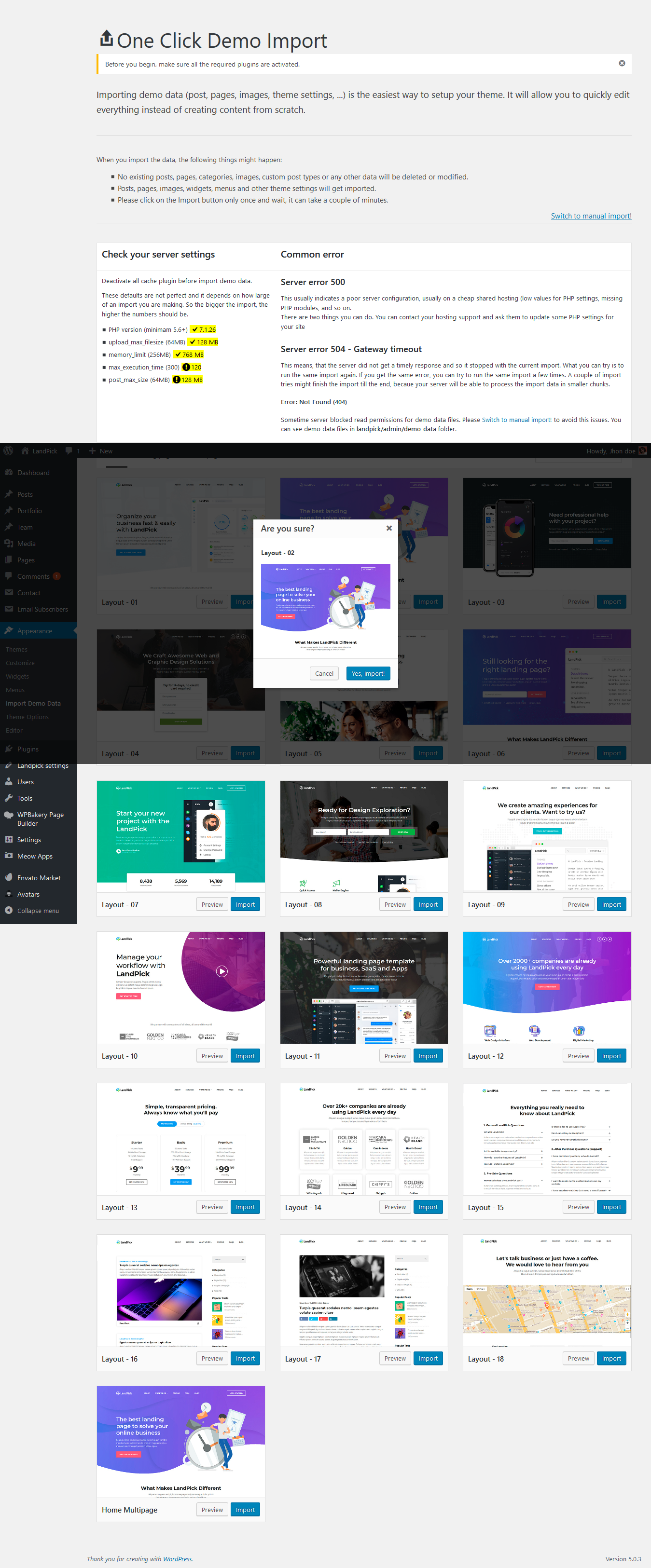
02 - Select demo & Import
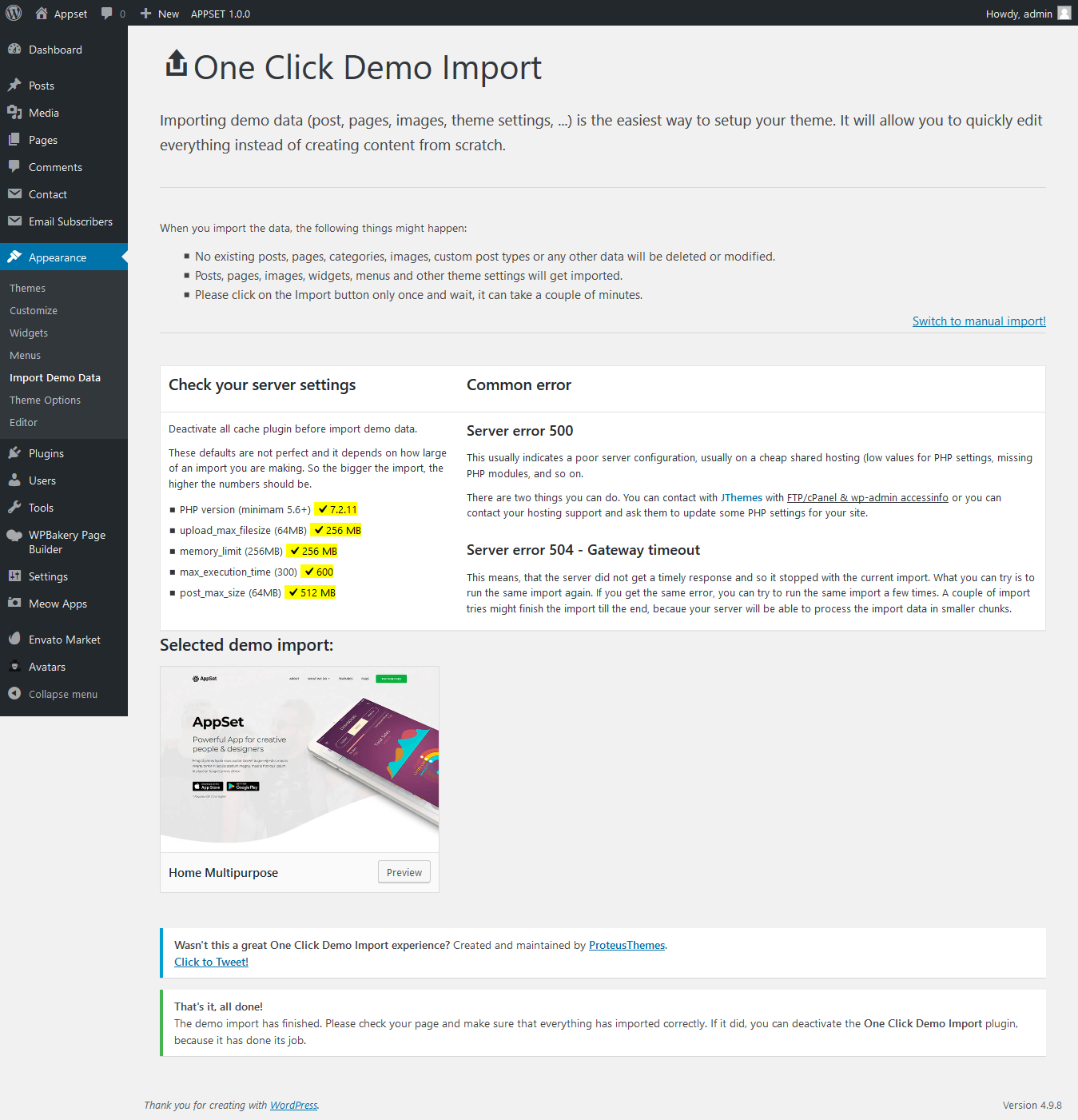
03 - Done!!
Landpick Page Settings
Header Settings
- Header/Breadcrumbs Title display - ON / OFF
- Header/Breadcrumbs Background
- Slider shortcode display when title area OFF
- Layout settings
- Sidebar selection option will be available for Left/Right sidebar
Page templates
-
Default Template
Display Navbar + header, Content area with container & Footer
-
Full width template
Display Navbar + header, Content area without container & Footer
-
Landing page template
Display navbar, Content area without container & Footer
-
Landing page advanced settings On
Tons of features in advanced settings such as, Custom logo settings, Custom logo image settings, Custom logo Text settings, nav settings,nav icon settings, Social Icons settings, Social Icons display settings, Navbar Search placeholder settings, Header buttons settings, Header button display setting
-
Landing page advanced settings Off
Display Landing page Nav menu, Display title Shortcode and Content area without container & Footer
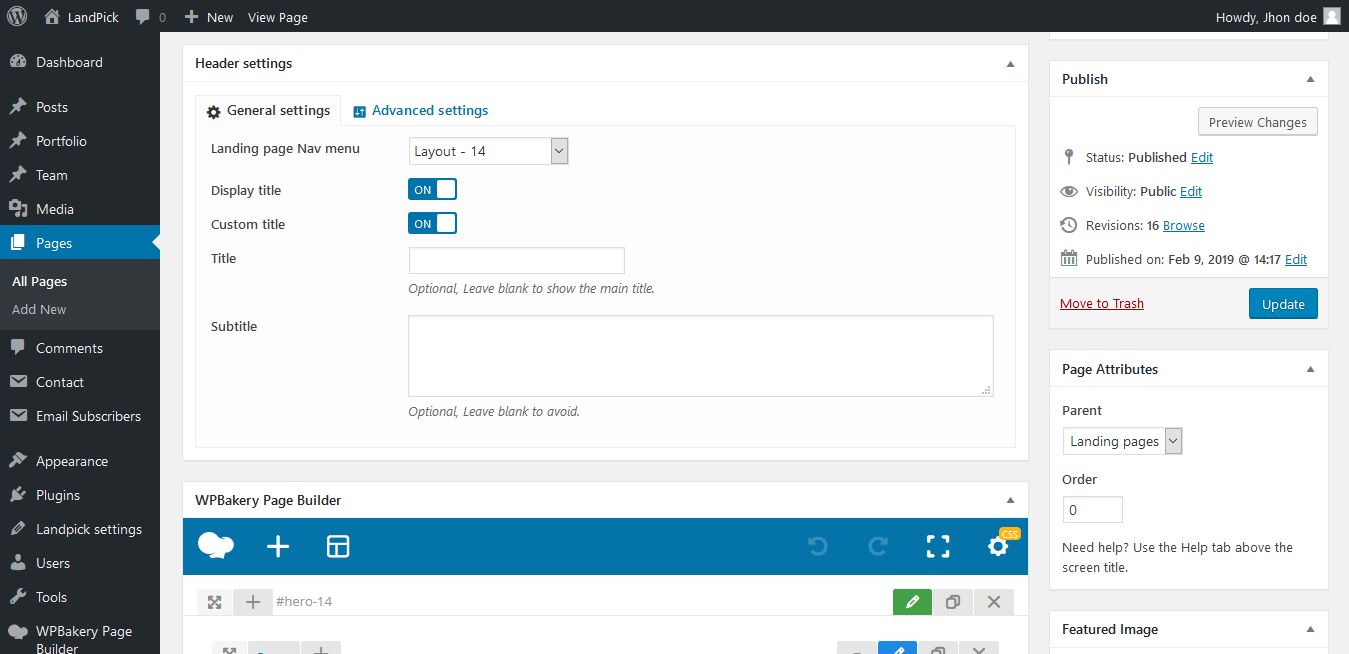
01 - Title area ON
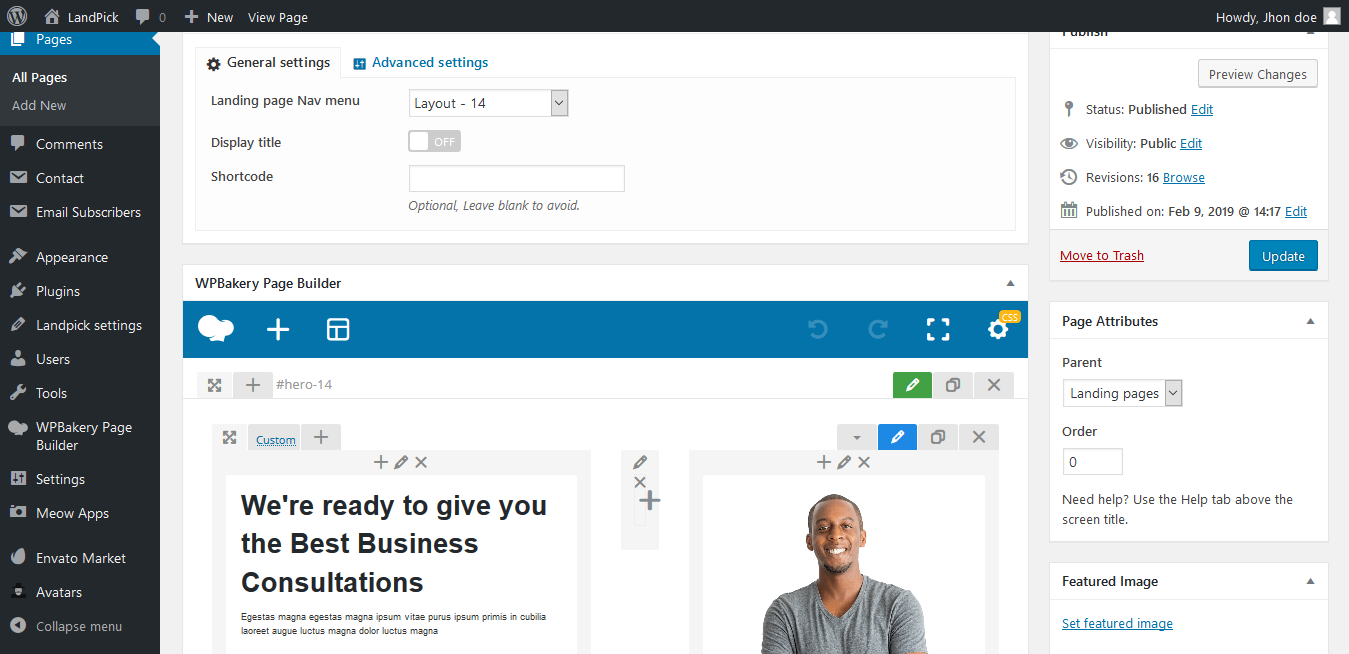
02 - Title area OFF
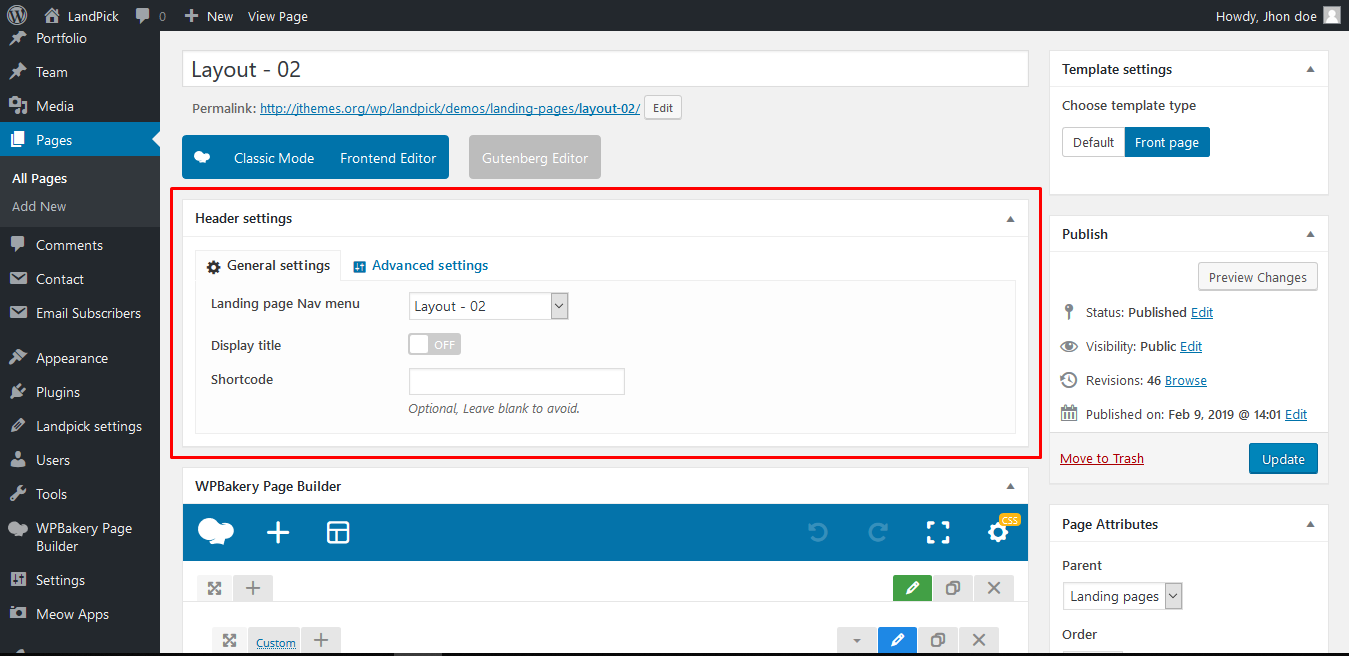
02 - Layout settings

02 - Template select

01 - Advanced settings - On
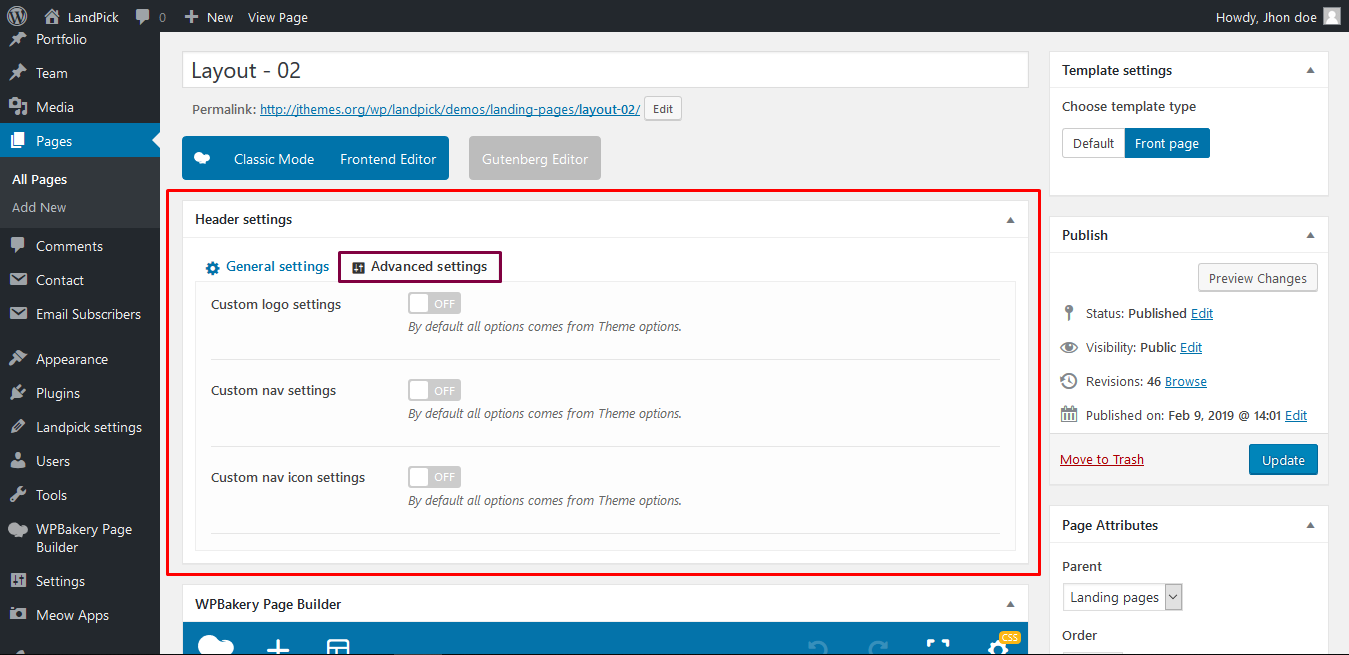
02 - Advanced settings - Off
Landpick Landing Page Settings
Landing page Options
-
01 - Select Landing page Template
Select Navbar style, Add navbar buttons / Social Icons
-
01.1 - Select Menu
Defining a Menu. You must define a menu before you can add items to it
-
01.2 - Logo settings
Click Select Logo to open the Media Library. Select an image from it or upload the new ...
-
02 - Navbar settings
Select Navbar style, Add navbar buttons / Social Icons / Navbar Search placeholder text.
-
03 - Landpick settings
You can add any Social button and also Icon Title URL
-
03.1 - Footer settings
Select Footer background style. Footer option can be changed from Theme options
-
03.2 - Select Backend Editor
Work with Backend Editor of WPBakery Page Builder plugin for WordPress – minimize and expand rows for better layout overview.
-
03.3 - Select Frontend Editor
WP Quick FrontEnd Editor is a best front end editorial manager that will enable you to change and spare substance of post and pages.Drag-and-Drop Customization and No Coding skills
-
03.4 - Select Gutenberg Editor
The Gutenberg WordPress editor is a new page builder.as more than a content field, that is being designed to integrate with WordPress core. Gutenberg will add content blocks and page builder-like functionality to every up-to-date WordPress website.
-
04 - Add predefined template
You can add predefined template here or create new landing page template
-
05 - Update template
Template code here with the generated code and Update template
-
06 - Enable Predefined template settings
You can Predefined template settings such as, Blog page, Faq page, Terms page, Download page
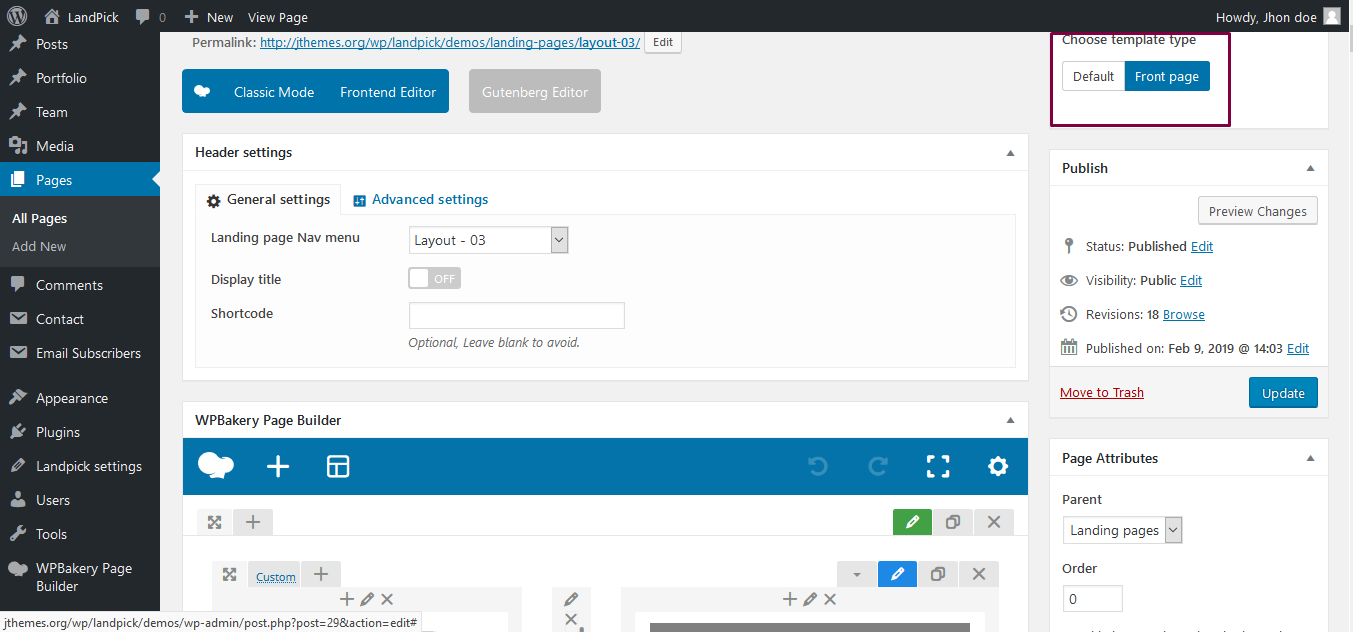
01 - Select template

01.1 - Menu select
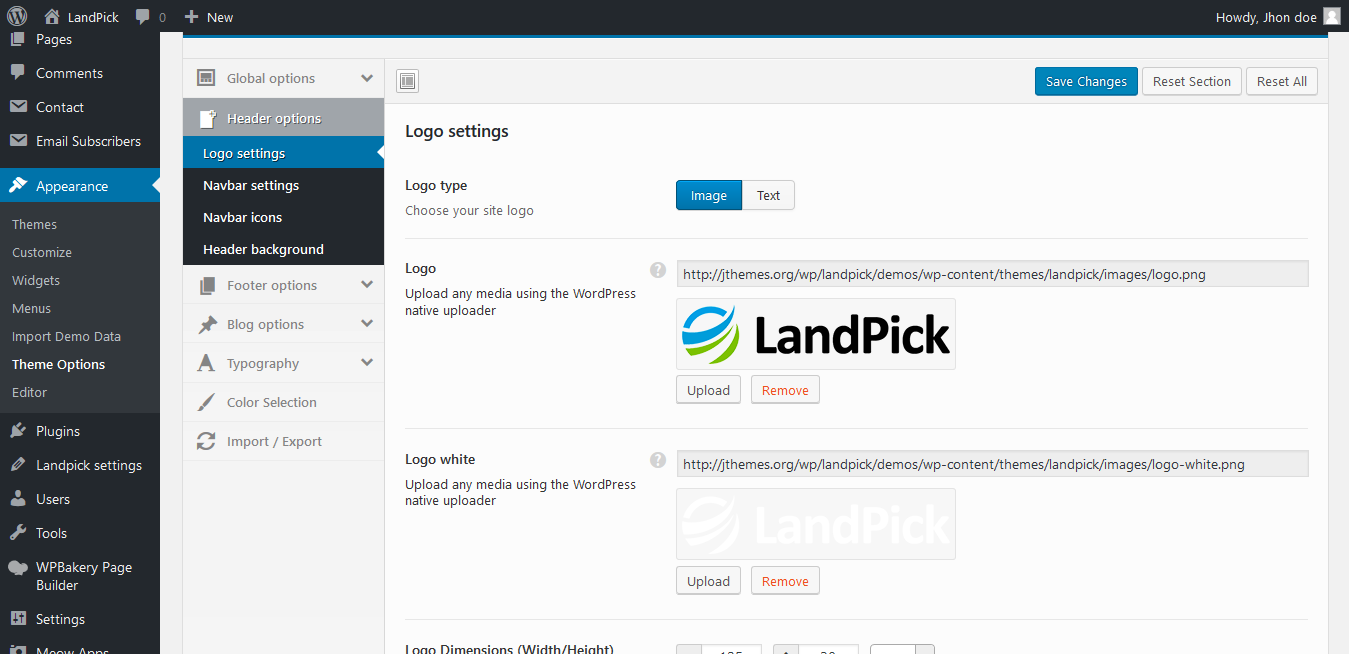
01.2 - Logo settings
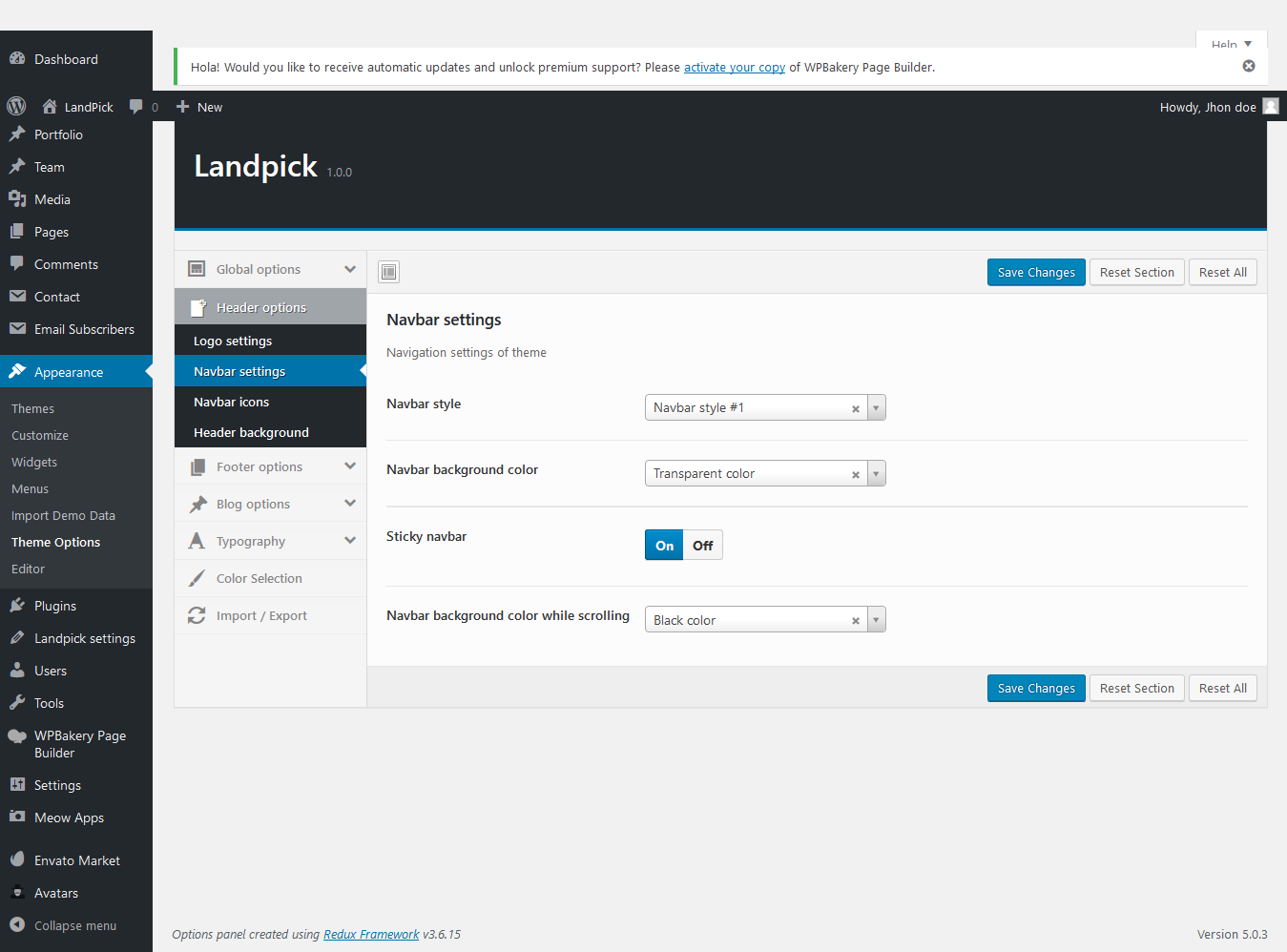
02 - Navbar settings

03 - Landpick settings
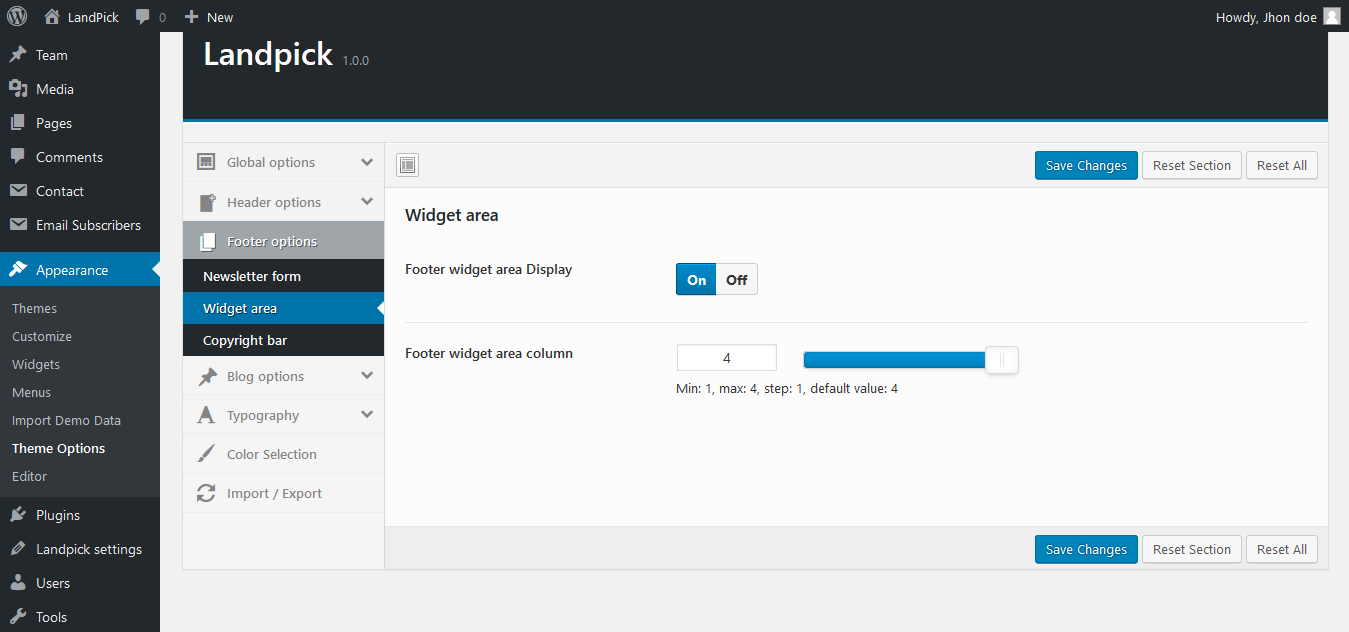
03.1 - Footer settings
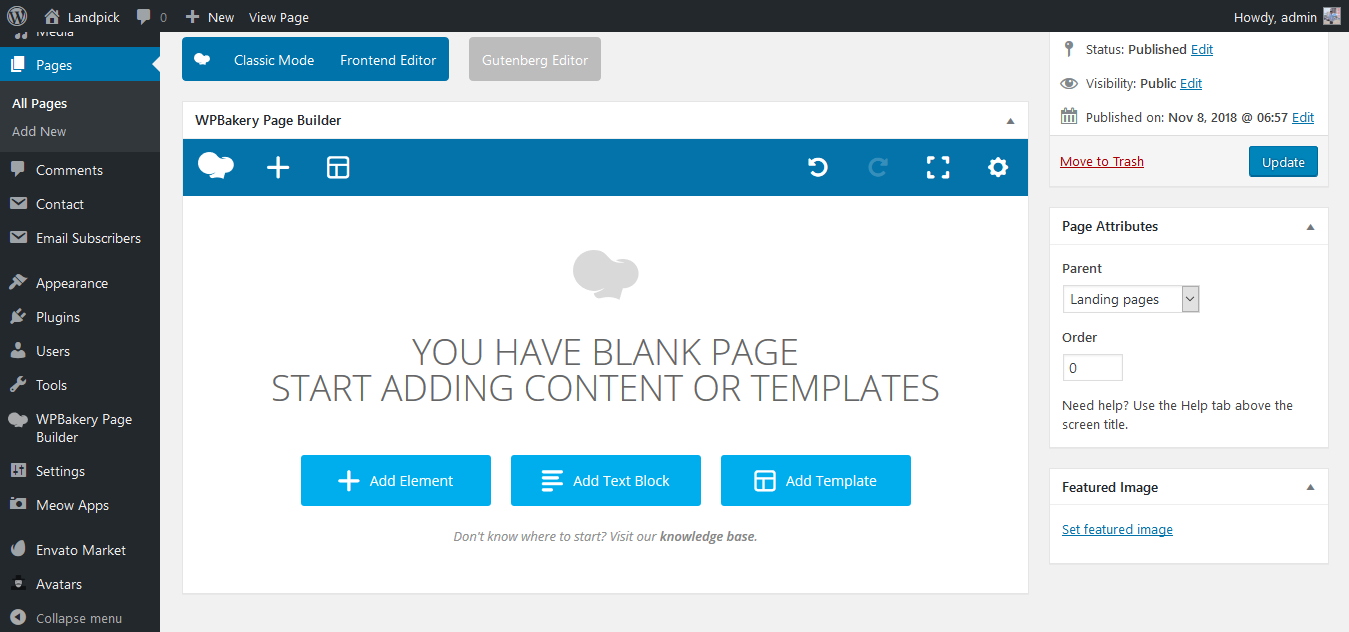
03.2 - Backend Editor
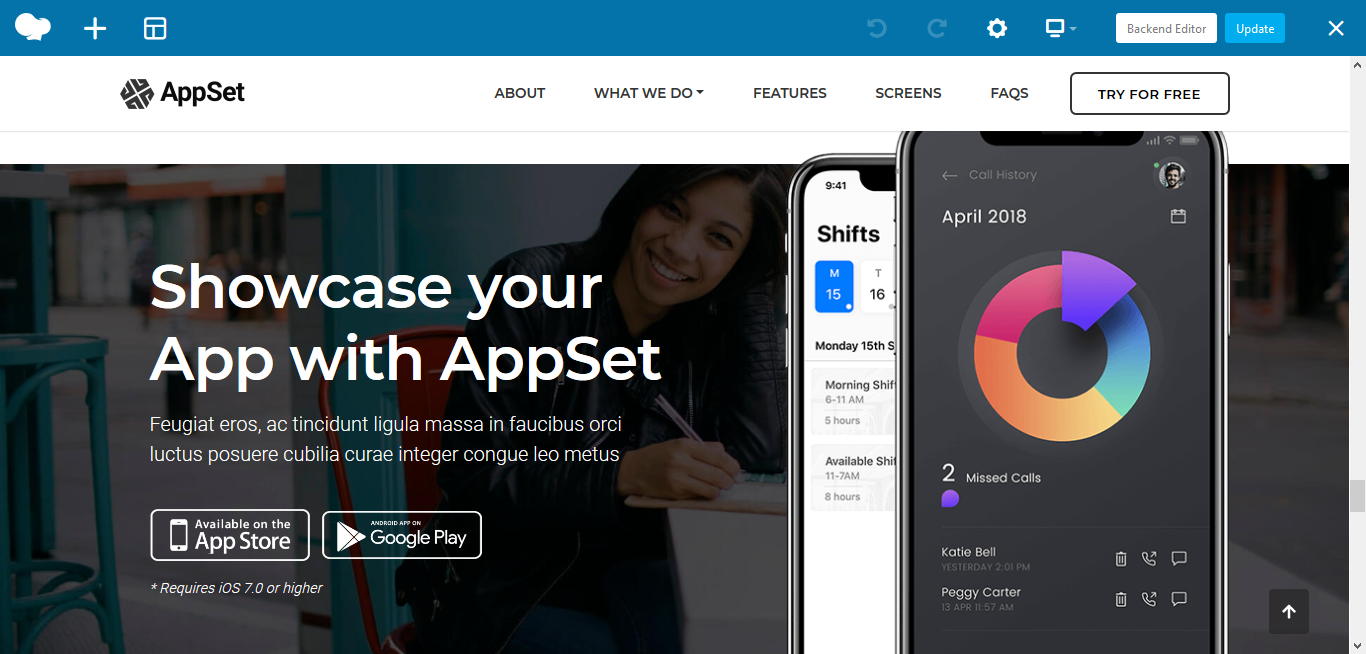
03.3 - Frontend Editor
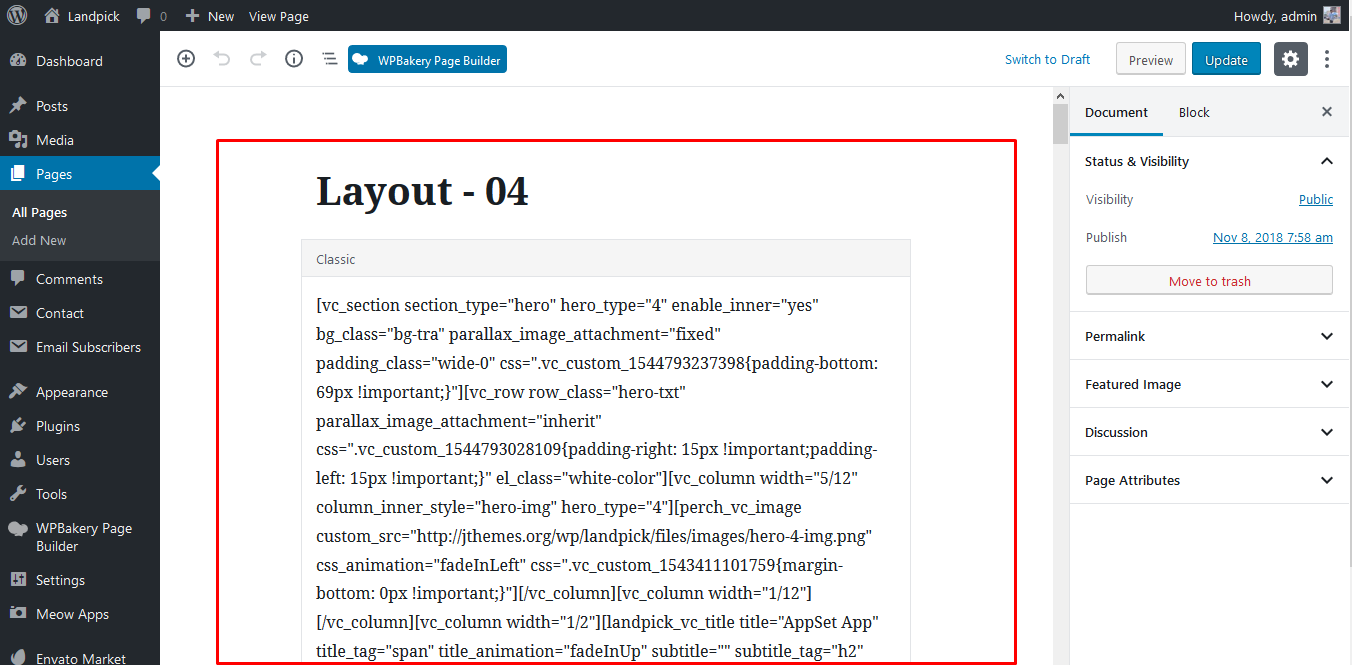
03.4 - Gutenberg Editor
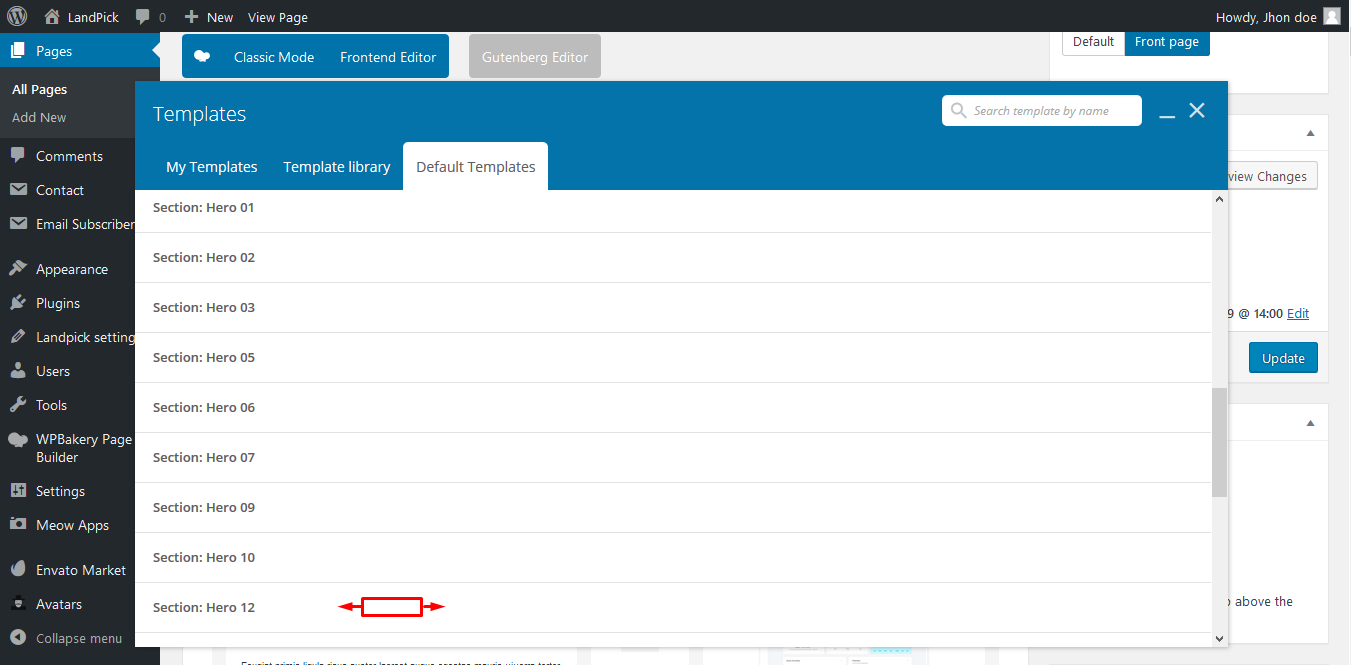
04 - Adding Predefined template

05 - Update template
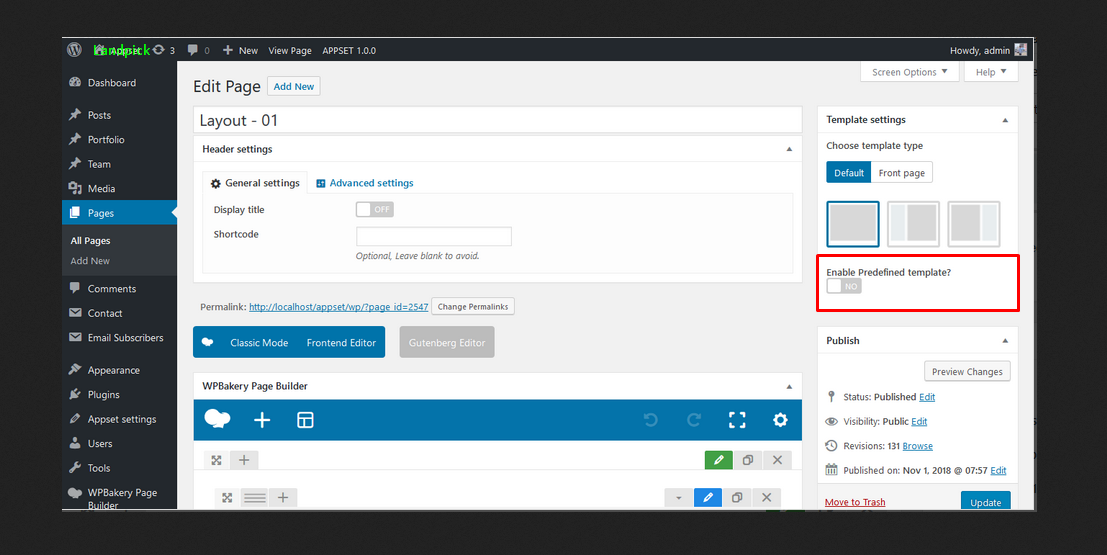
06 - Enable Predefined template settings
Visual composer elements
Total 46+ elements with 18 hero banners are available
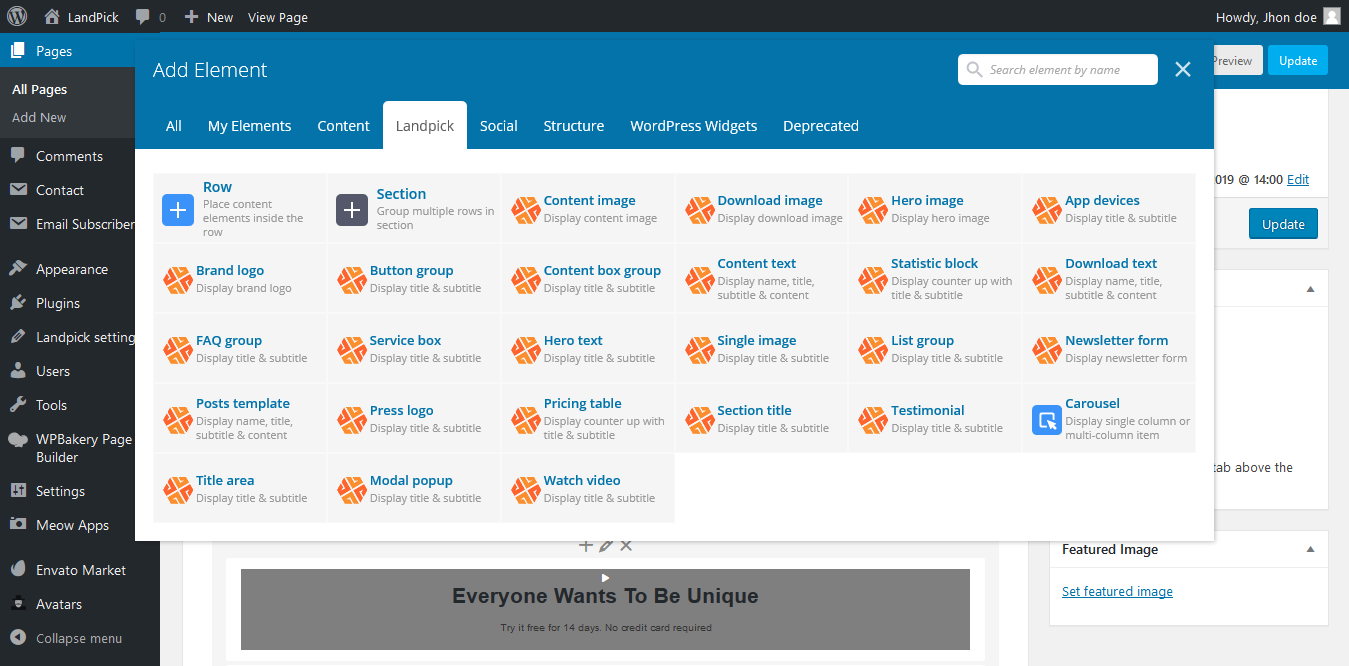
User landpick VC elements
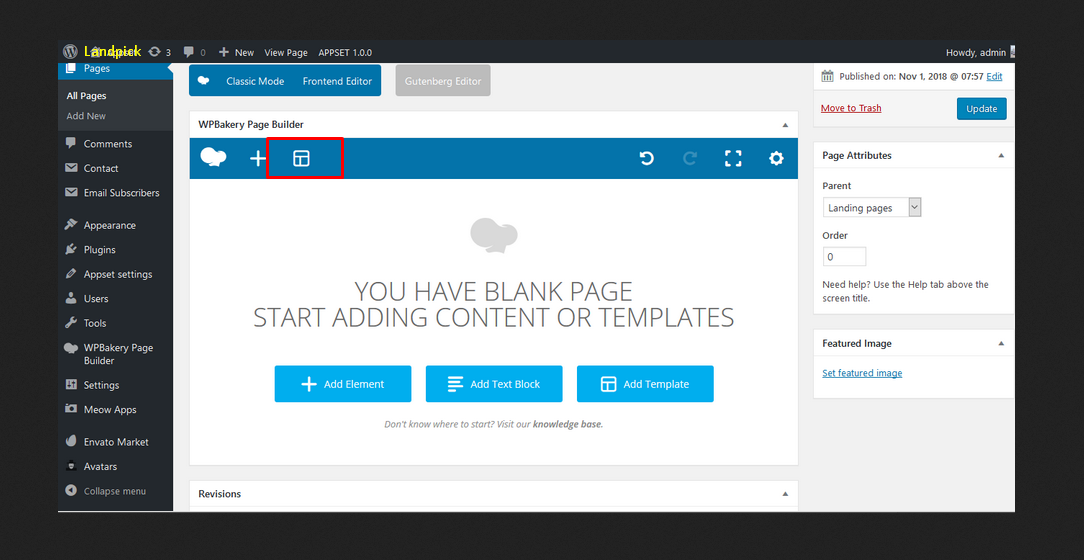
- Use Backend editor
- Click Add element button or Plus(+) Icon & choose one to add
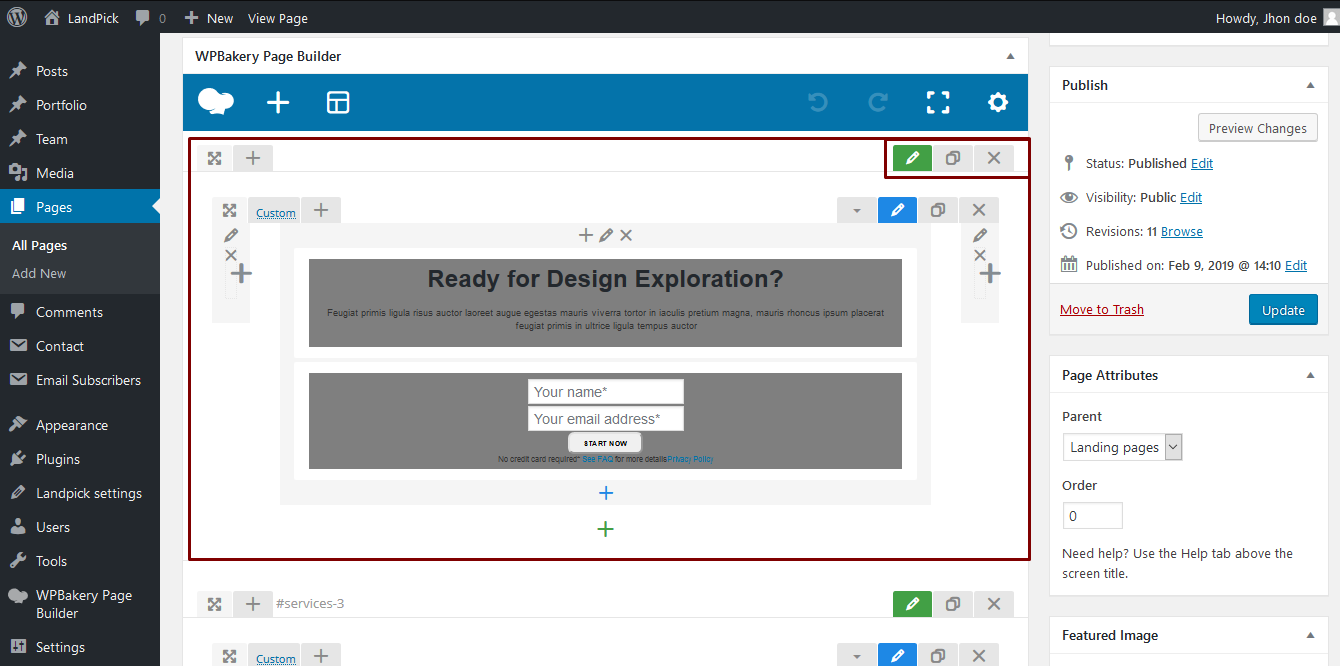
- If you use Frontpage / Landing page template, then Atfirst Add section, then row, then element
- Do not add Section when you select Default template
01 - Import Demo Data
02 - Select demo & Import
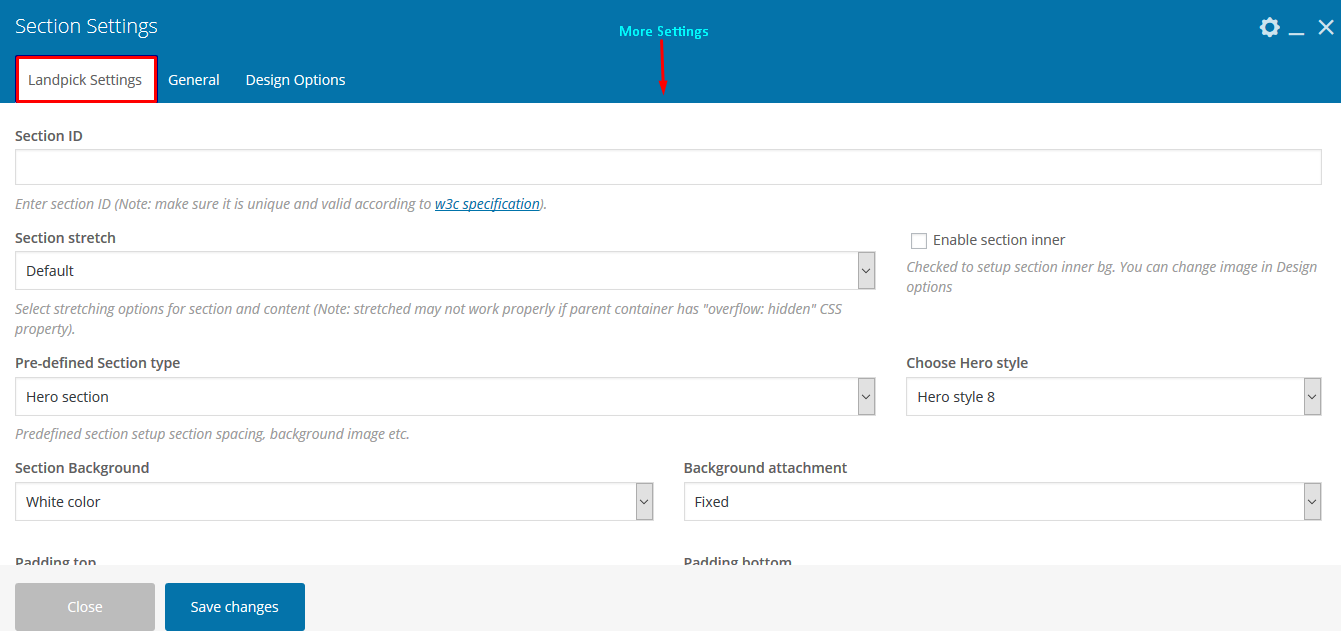
Section settings
- Edit section, go landpick settings
- You can change section background there
- Control Section top bottom spacing
- Section video background
01 - Import Demo Data
02 - Select demo & Import
Theme Options
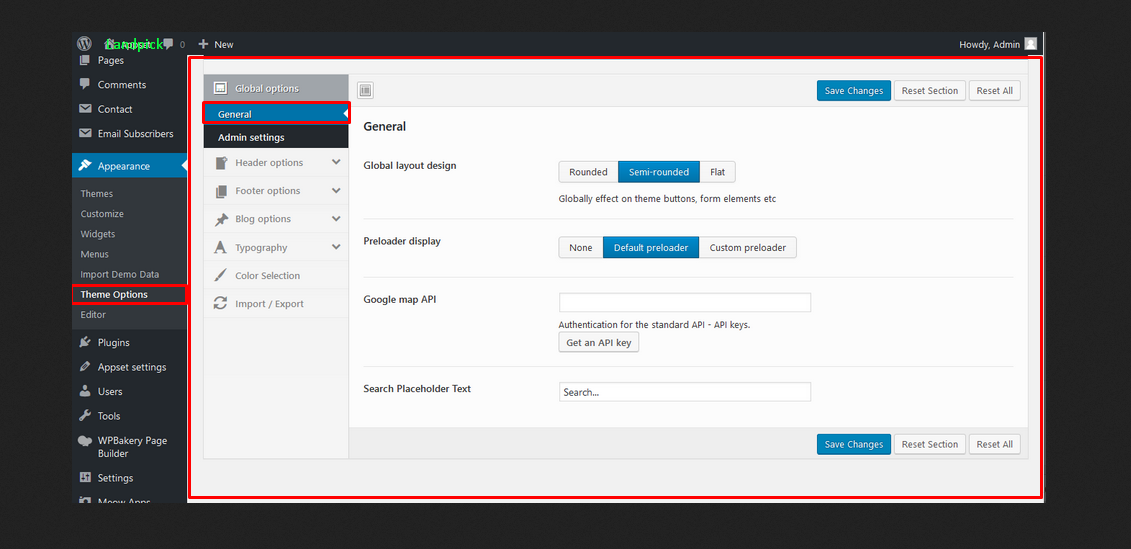
01 - General options
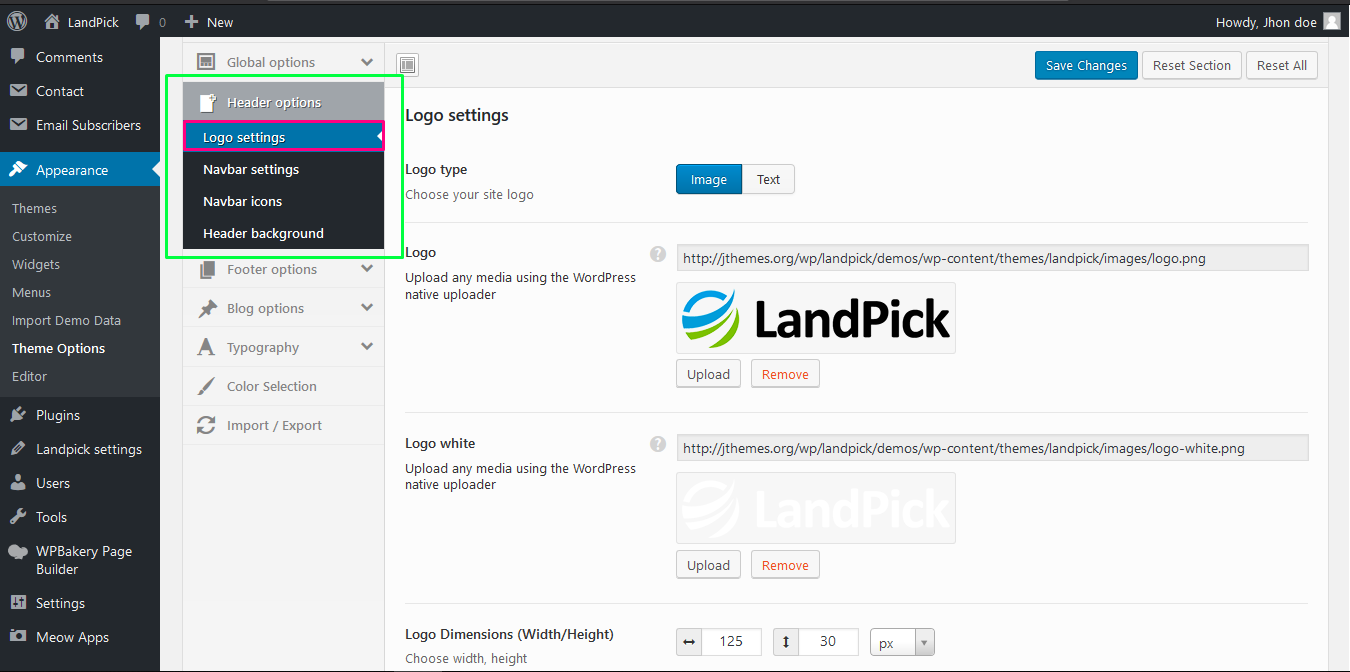
02 - Header options
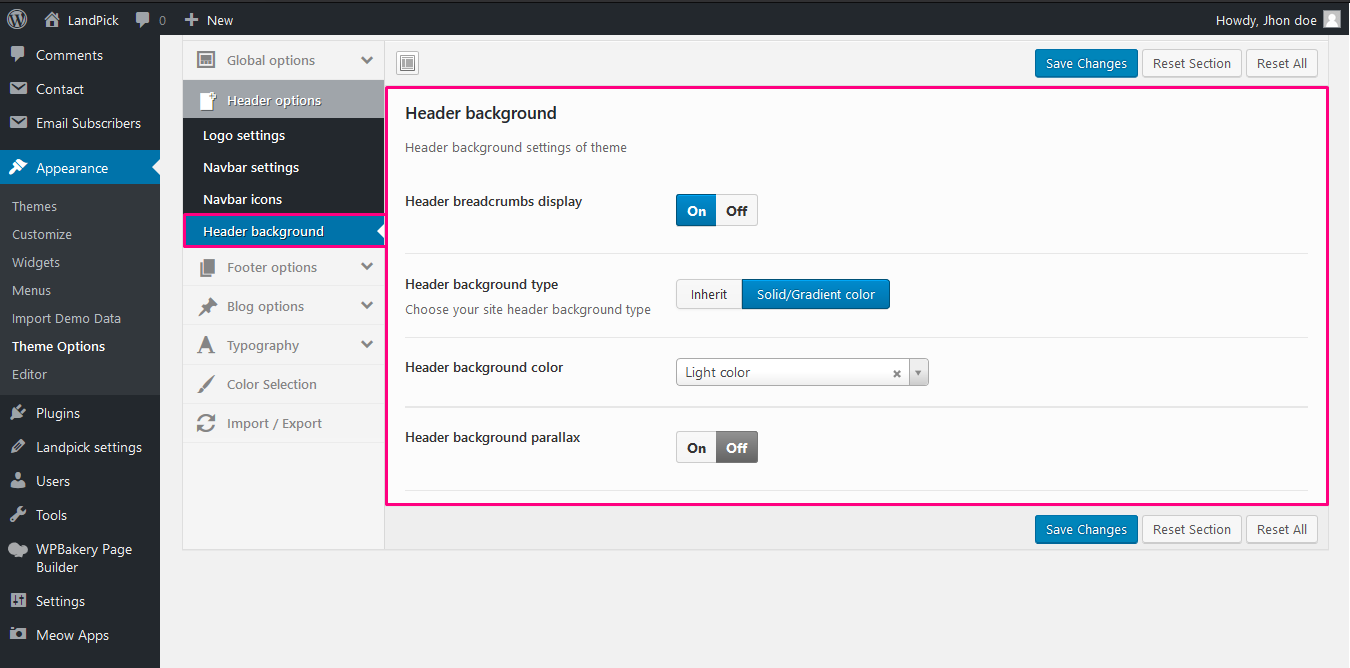
03 - Background options
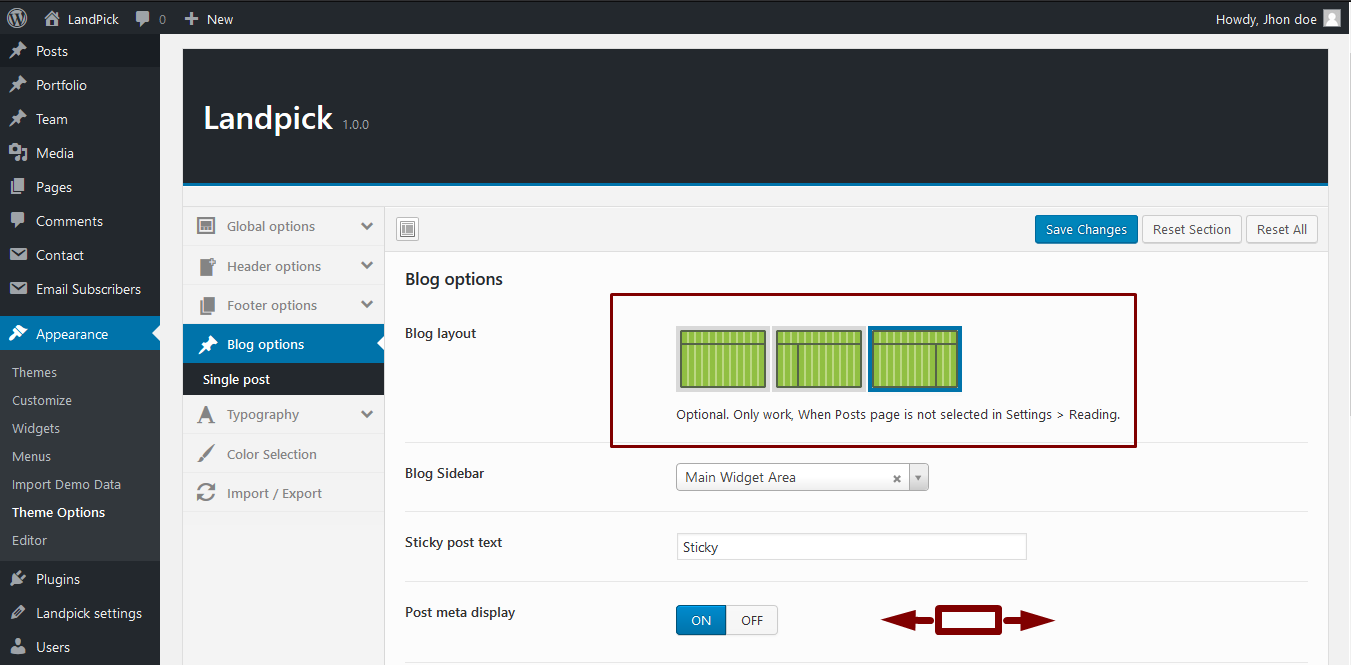
04 - Sidebar options
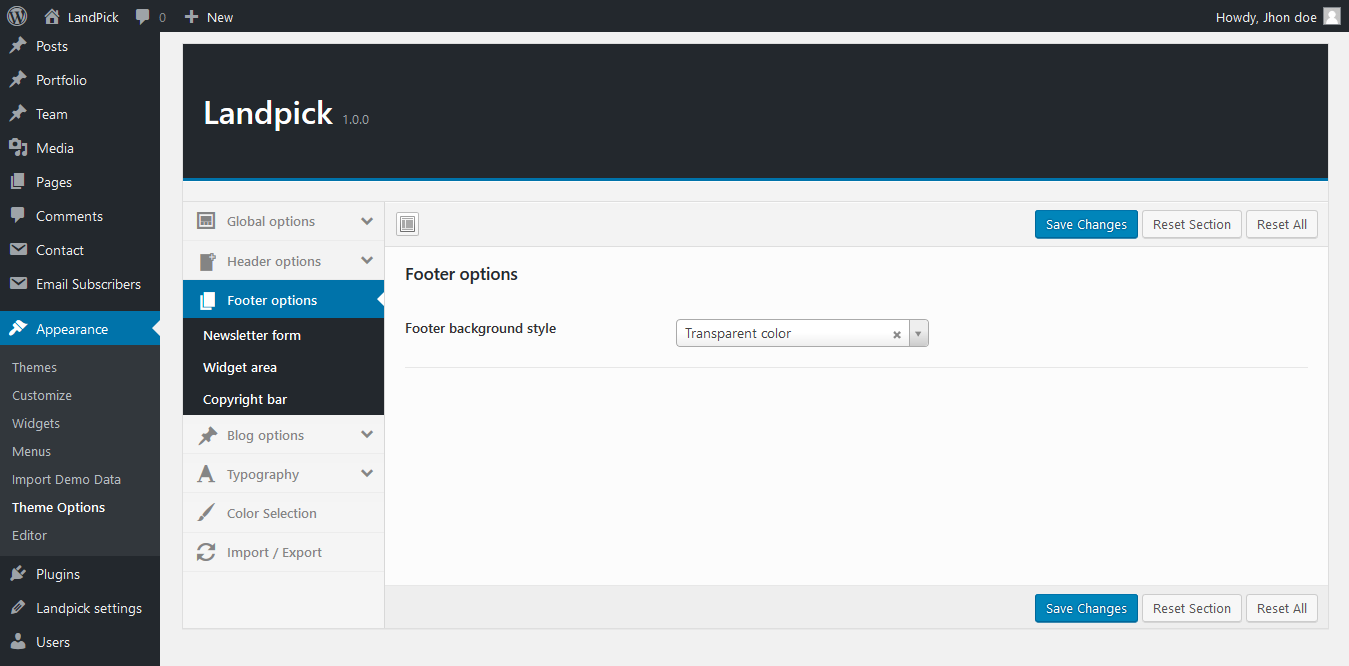
05 - Footer options
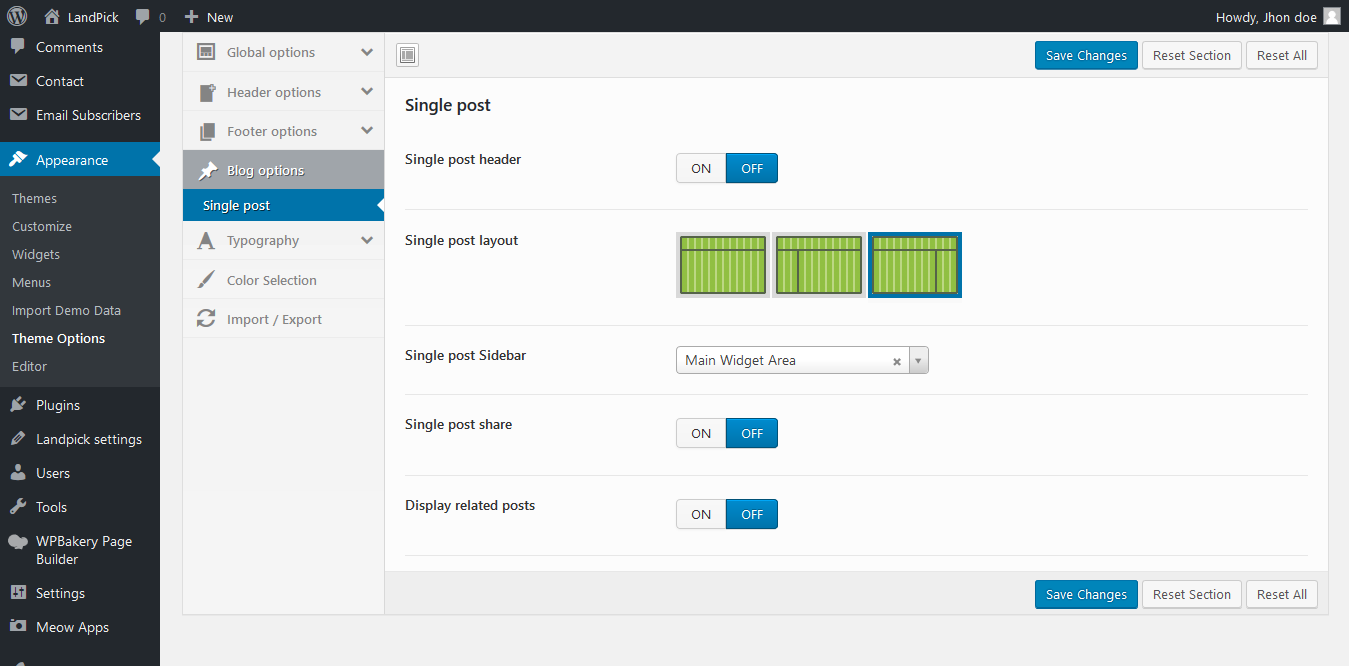
06 - Blog & single post options
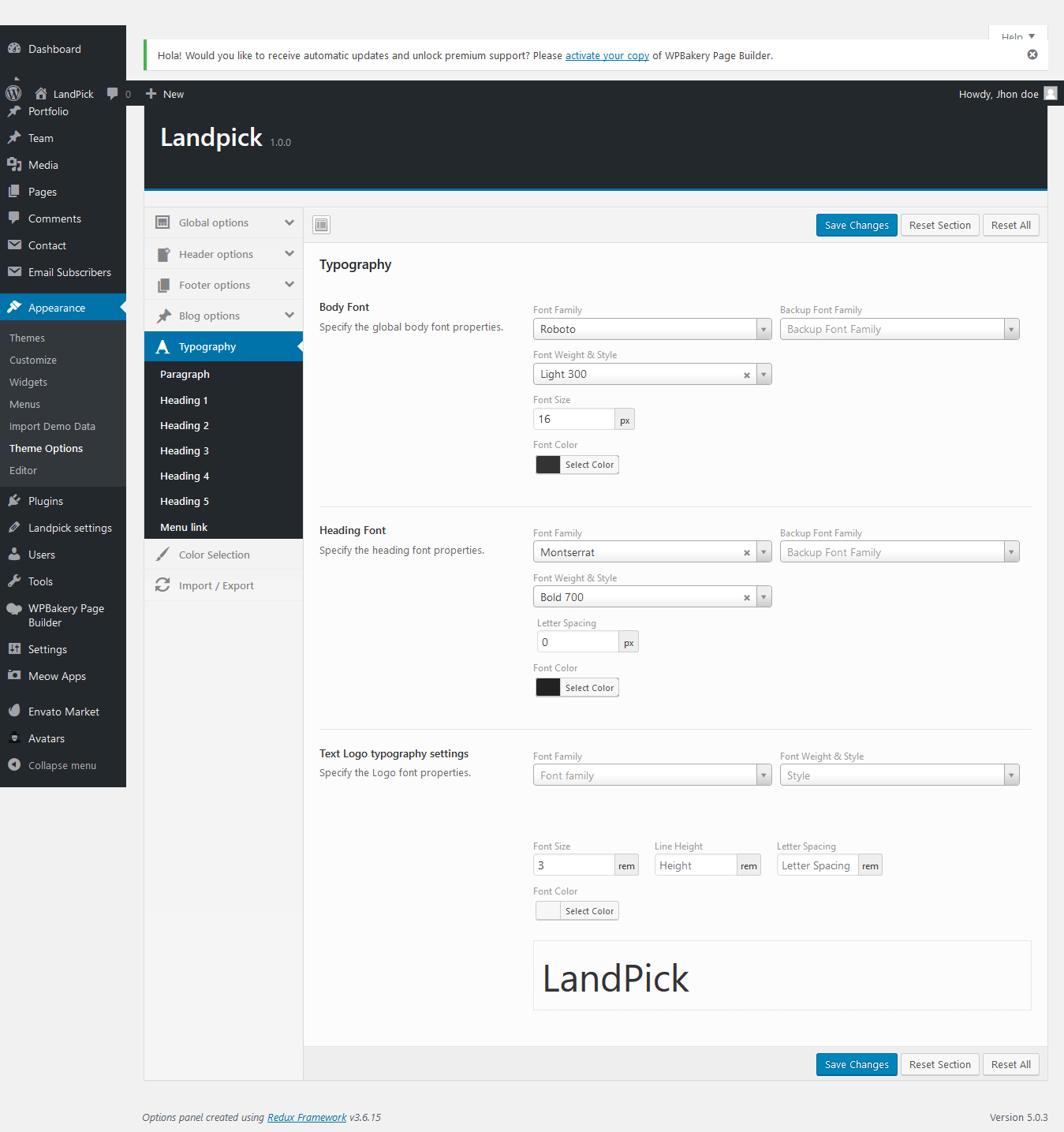
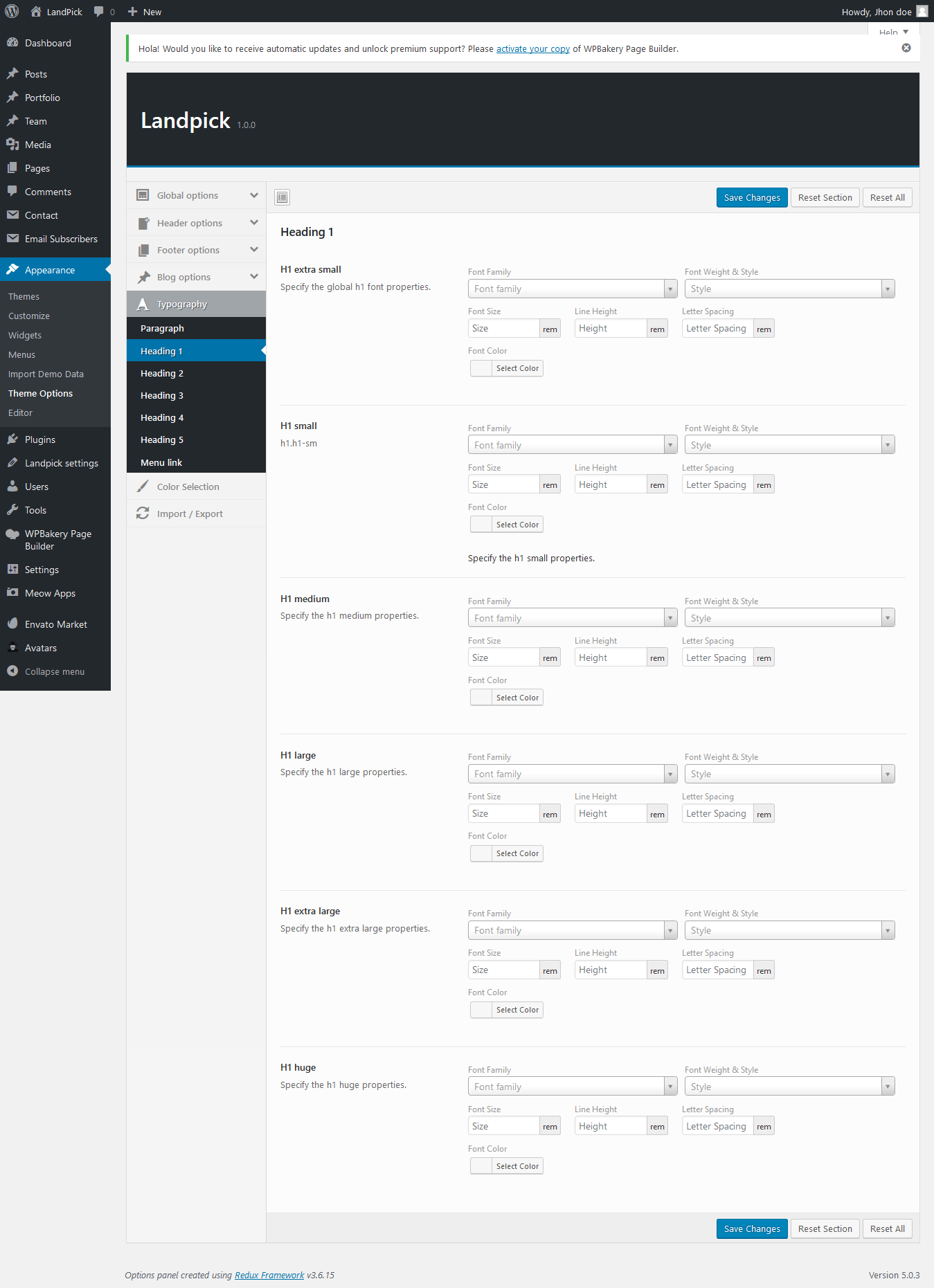
07 - Typography options
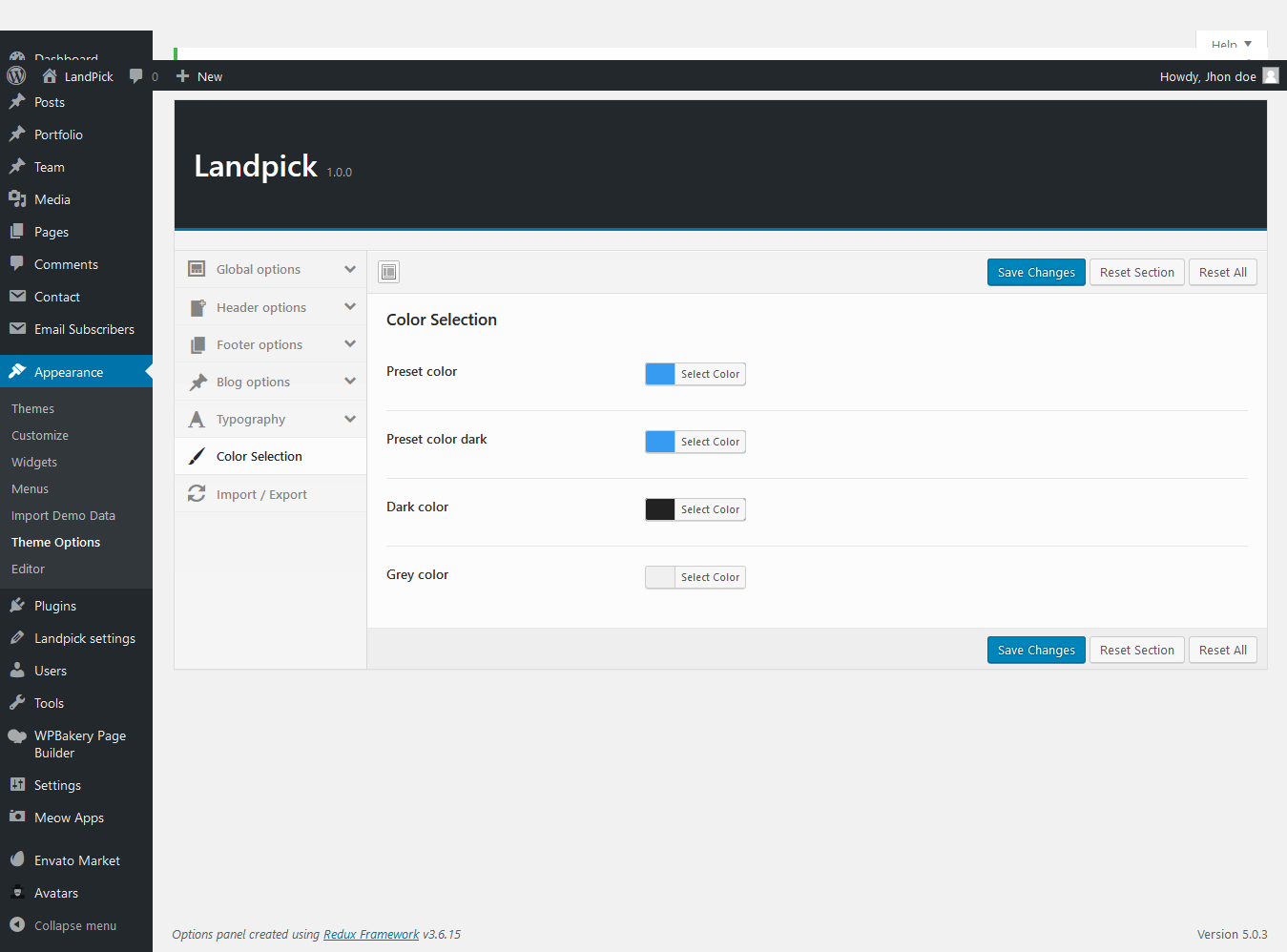
08 - Styling options