

| Demo Import, Reset WordPress, Theme Installation, Update the reine theme | December 11, 2023
Updating a WordPress theme is a common task, and it’s important to do it carefully to avoid losing any data. Here’s a step-by-step guide on how to update your WordPress theme without losing any data:
Before You Begin:
- Backup Your Site:
- Before making any updates, it’s crucial to back up your WordPress site. You can use a backup plugin or your hosting provider’s backup tools.
- Check Theme Compatibility:
- Ensure that the new version of the theme is compatible with your current version of WordPress.
Updating the Theme:
- Update Manually or via WordPress Admin:
You can update the theme manually by downloading the latest version from the theme provider’s website and uploading it via FTP, or you can use the built-in theme update feature in the WordPress admin.
- Check for Child Themes:
If you are using a child theme, update the child theme first. This ensures that any customizations you’ve made are preserved.
- Review Theme Documentation:
- Check the theme documentation for any specific update instructions or requirements.
Upload the Theme:
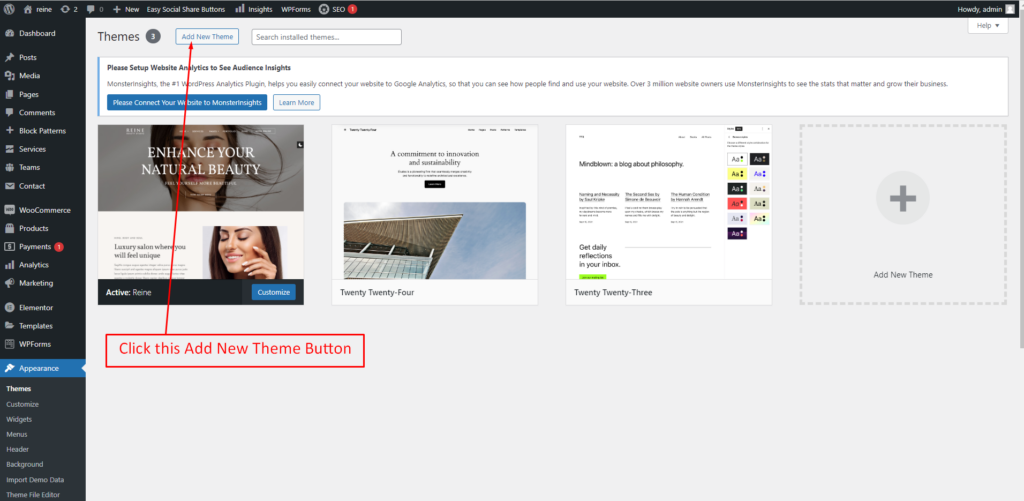
- In your WordPress dashboard, go to “Appearance” and click on “Themes.”
- Click the “Add New Theme” button.
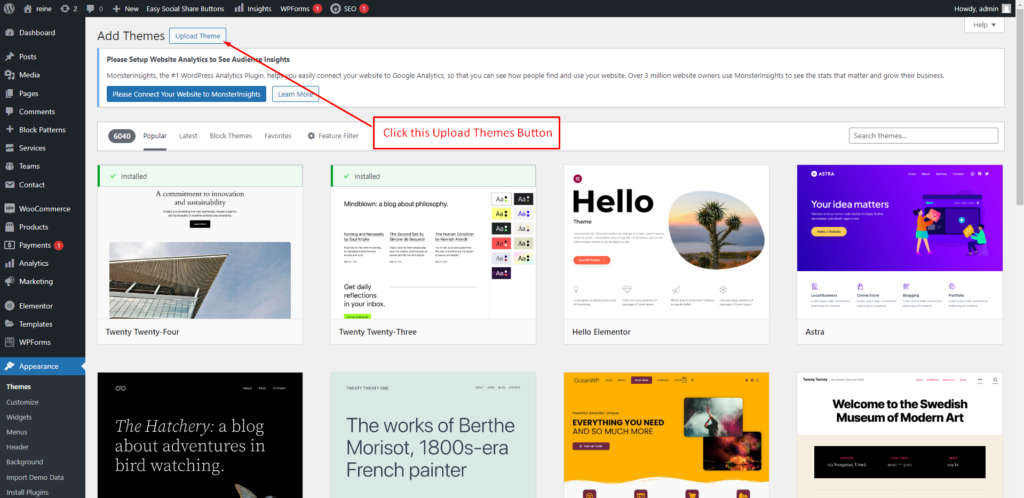
- Click the “Upload Theme” button.
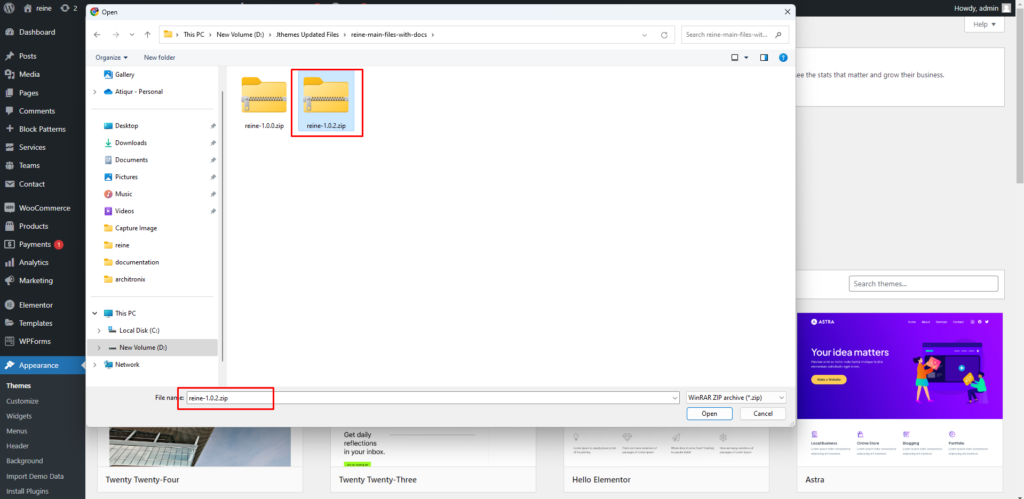
- Select the latest Eventiva ZIP file you downloaded and click “Install Now”.
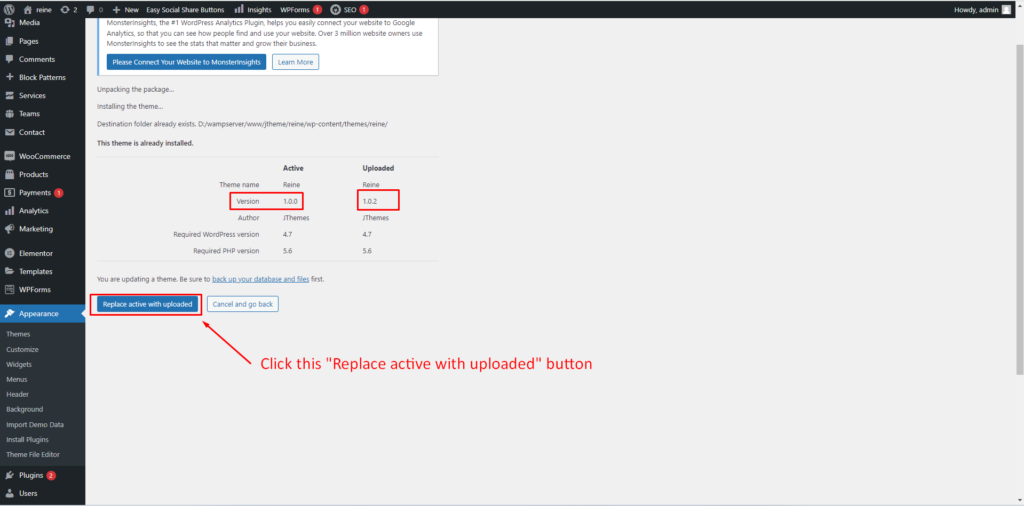
- Click the “Replace active with uploaded”
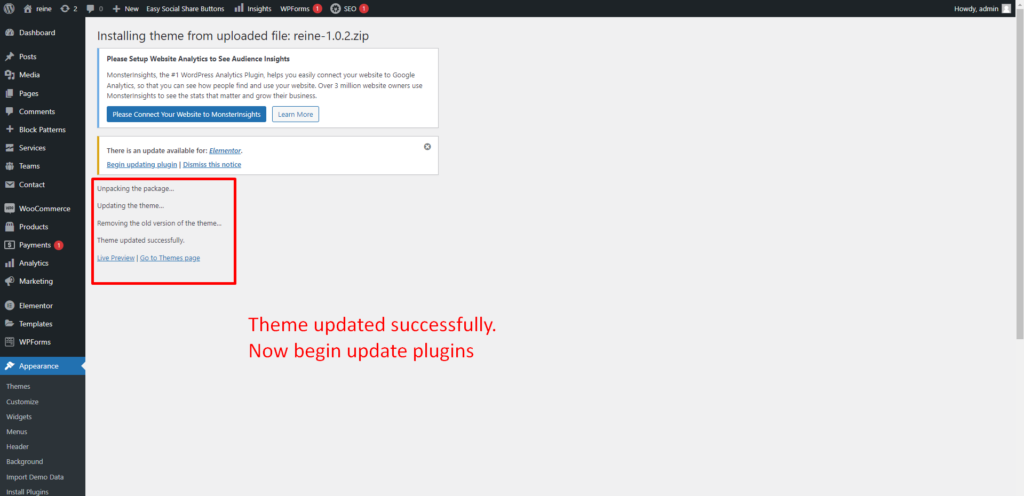
4. Update Plugins:
- If your theme comes with the required plugins, make sure to update them as well.
- Go to Appearance > Install Plugins
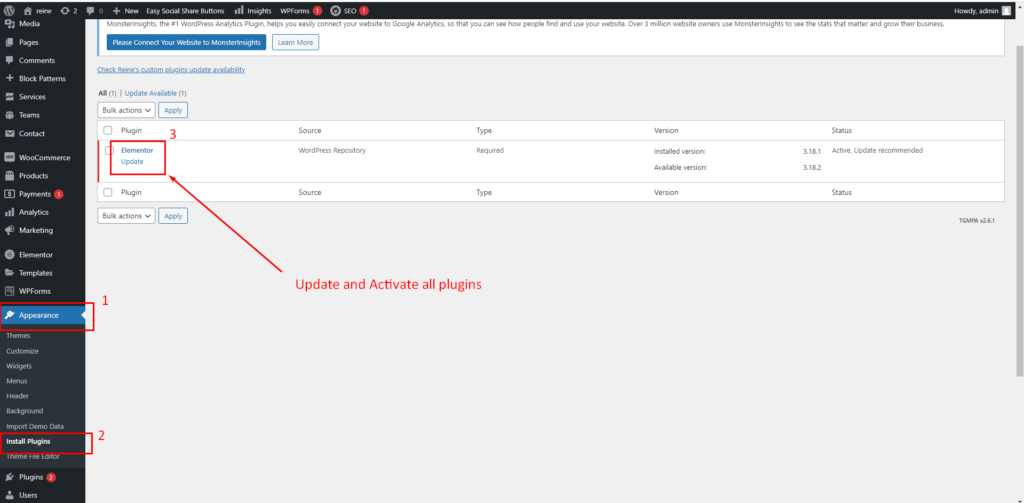
After Updating:
- Check Site Functionality:
- After updating the theme, browse your site and test its functionality to ensure everything is working as expected.
- Check Customizations:
- If you’ve made customizations directly to the theme files, those changes might be overwritten during the update. If possible, use a child theme for customizations to avoid this.
- Update WordPress Core and Plugins:
- Ensure that your WordPress core and plugins are also up-to-date. Compatibility issues can arise when using outdated software.
- By following these steps, you can update your WordPress theme without losing any data and minimize the risk of disruptions to your site.